

Forwarding an email to yourself just to add a note — again? Wish you could add a few words to make sure you’ll find a particular email later, or a personal note that sticks to the email wherever it goes? Find out here how to add sticky notes — or memos — to any email in Fastmail ⤓.
On This Page
How to Add Sticky Notes (Memos) to Emails in Fastmail
Time needed: 2 minutes
To add a private memo (sticky note) to an email in Fastmail:
- Open the message in Fastmail.
- Click Add a private memo in the message header.
Here’s what it looks like: The button is a stylized notepad.
No “Add a private memo”: If you do not see the notepad icon, do check that conversation grouping is enabled in Fastmail.
Fastmail keyboard shortcut: You can also press O to add a note. - Type your note in the yellow sticky note area.
No need to save: The note is automatically saved to a (hidden) reply in a folder; see below for accessing that note via IMAP.
Their word: Fastmail include information on memos in Fastmail help.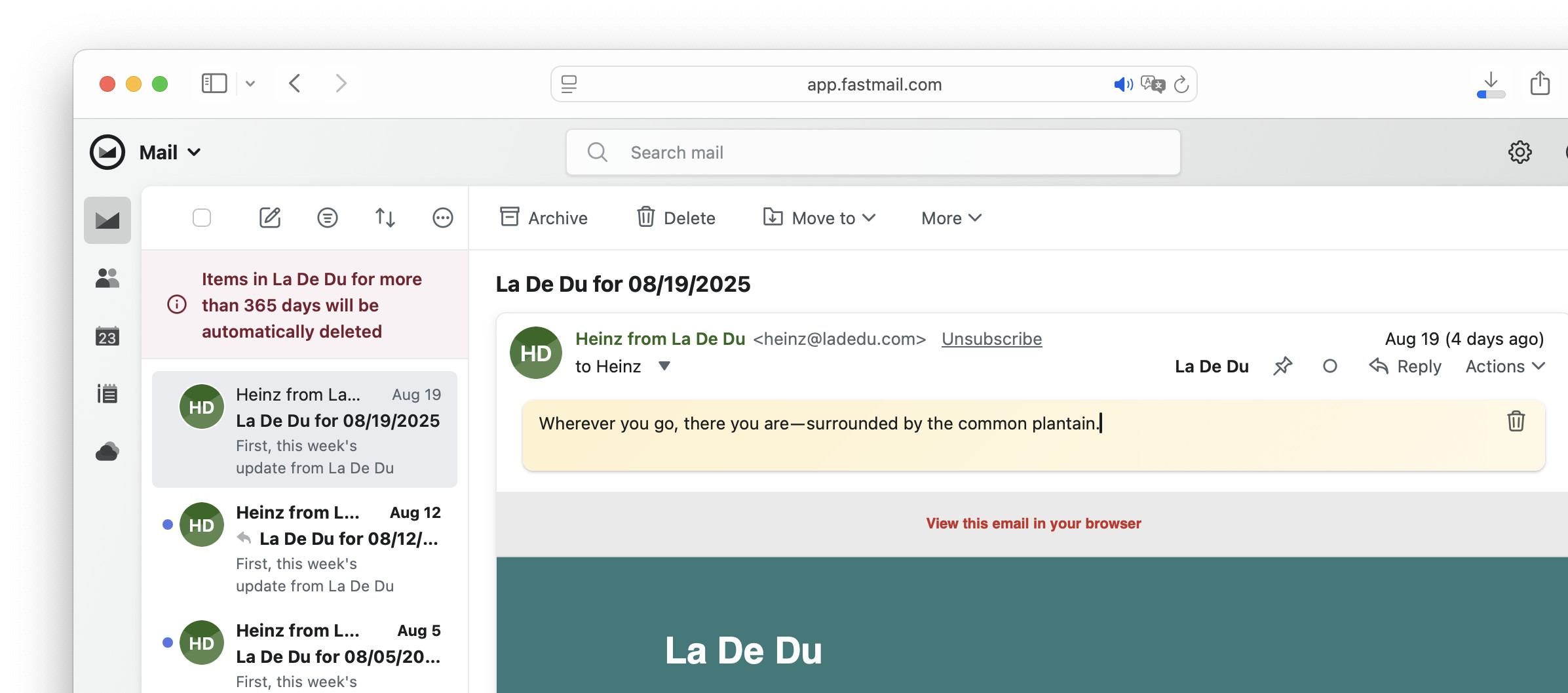
Pinned your thoughts and words?
Tips help fuel these email and tech how-tos.
Remove a Sticky Note from a Fastmail Email
To delete a note from an email in Fastmail:
- Open the email with the sticky note.
- Click the Delete button in the note’s top right corner.
Emptying: You can also highlight and delete all the text from a note to effectively delete the note.
How to Add Sticky Notes (Memos) to Emails in Fastmail: FAQ
What are Fastmail memos?
Memos are private notes you can attache to individual emails in Fastmail. They are visible only to you in your account, and you can use them for reminders, follow-up or reference information and personal comments.
Unlike clutches such as forwarding emails to yourself with comments or tracking notes in a different app, Fastmail memos stay attached to the original email, so you always see them in context.
Common uses of memos include:
- Remembering why you saved an email
- Adding follow-up reminders
- Recording project, order or customer information
- Storing phone numbers in context
Can other people see my Fastmail memo?
No.
Fastmail memos are private to your account. They are not included when you reply to an email or forward it, and they are not visible to the sender or other recipients of the original email.
Can I add more than one note to an email?
No.
Each email can have one memo attached in Fastmail..
Can I access notes for emails in Fastmail using IMAP?
Yes.
Notes appear directly attached to emails in the Fastmail web interface and the Fastmail apps.
If you access Fastmail using IMAP, notes appear in the Memos folder as replies to the original messages. Email programs that organize messages by thread will show the note as a reply associated with the original email
Can I add a note through Fastmail iMAP?
No.
You can reply to an email, of course, and move the reply to the Memos folder; the email will still appear as a reply, not as a note in the Fastmail web interface.
Can I add formatting to the note?
No.
Fastmail memos only support plain text.
Can I search for the text in notes?
Yes.
Text in notes is found just like the text inside messages, so you can find messages using words that appear in the attached memo.
(Tested with Fastmail in a desktop browser; first published August 2025, last updated September 2026)