

Copied text, and now you’re wondering what invisible characters might be tagging along? Hidden whitespaces, sneaky newlines or maybe even zero-width characters can all be hidden in copied text. Curious about how emoji composed of multiple characters are constructed? Find out here how to view non-printing characters and Unicode code points for any text ⤓.
On This Page
How to Reveal Non-Printable Characters and Unicode Code Points Fast
Time needed: 1 minute
To find the Unicode code point for all characters and reveal hidden non-printable symbols in a text:
- Paste or enter the text under Input in the form below.
- Find the text including many non-printing characters under With Non-Printable Characters.
All the code points: See the text represented as UTF-16 code points under As Unicode Code Points.
All the parts: Both will, for the most part, show the individual parts for combining characters; browsers may still combine two characters to the combined form for display.
Example: The astronaut 🧑🏽🚀 will display as the Unicode code points U+1F9D1U+1F3FDU+200DU+1F680, of which it is composed. - Hover over any character to see its Unicode code point or rendered representation, respectively.
Alternatives: You can also find code points for individual characters using Character Viewer on a Mac and Characters on Gnome Linux (see below) or using View non-printable unicode characters elsewhere on the web.

Text Including Non-Printable Characters
Hover to see Unicode code points.
Text as Unicode Code Points
Hover to see characters as rendered.
Uncovered lurking char(m)s?
Instant unlock code • private, offline app • file drag/drop • one-time → lifetime • no ads
Non-Printable Character Representation
| ␉ | Tab |
| ␊ | Line feed (newline) |
| ␌ | Form feed |
| ␍ | Carriage return (newline) |
| ␠ | Whitespace |
|  | Newline |
| ␢ | Zero-width joiner (for combining chars) |
| ␗ | New paragraph |
Found zero-width space? Get rid of it with one click:
Zero-Width Space Detector: Zaps Hidden Chars from Text
View Unicode Characters with Mac Character Viewer
To find the Unicode code point for a character on a Mac:
- Open Character Viewer on the Mac.
Here’s how: Select Edit | Emoji & Symbols from the menu.
Emoji panel: If the emoji panel opens, click the button in its top right corner to expand it. - Type or paste the character or characters in the Search field.
- Click on the desired character in the search results with the right moue button.
- Select Copy Character Info from the context menu that has appeared.

- Paste the code point information, for example in a blank note in Notes.
Here’s what you get: Find the UTF-16 codes under Unicode: and the UTF-8 codes under, well, UTF-8:.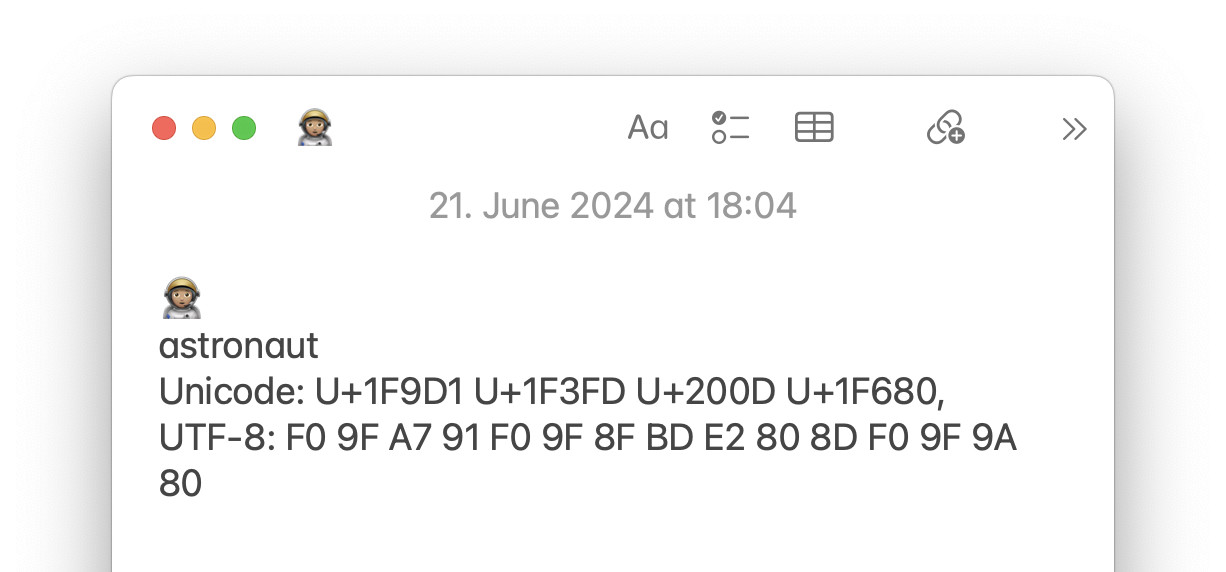
Is there a plain-text version of an emoji? How to Get the Text Version of Emojis (and Vice Versa)
View Code Points Using Gnome Characters on Linux
To reveal the Unicode code point for a character on Linux Gnome:
- Open Characters.
- Click Search.
Keyboard shortcut: You can also press Ctrl F. - Type or paste the character whose code point you want to reveal.
Just one: Characters will find individual characters or emoji. - Click the character in search results.
- Find the UTF-16 code under Unicode:
Combining characters: For combining chars, click See also, then click the characters in succession to see their code points.
How to Reveal Non-Printable Characters and Unicode Code Points Fast: FAQ
How can I find out more about a Unicode character?
To see details about a character or code point, search for its UTF-16 representation as revealed above using a Unicode character search engine.
Something else you can do with Unicode: How to Align Numbers Perfectly in Any Text: Unicode Monospace
Can I identify code points with Windows Character Map?
No, not easily.
While Character Map lets you find characters by name (to copy and insert them, for instance), locating information for a specific character is not a task accomplished easily with it.
UTF-16: For a character highlighted in character map, you can find the UTF-16 code point in the lower left corner.
Ready to Discover More?
File support • Offline PWA • Rendered Char ⇋ Code Point Mapping
Upgrade to PRO (one-time → lifetime)(First published June 2024, last updated April 2026)