

Have you been asked to check an email’s headers — but no clue where to start in Outlook? Curious what path an email took, or what’s going on behind its scenes? Find out here how to view full headers for an email message in Outlook for Windows with a clear and straightforward guide.
First, It’s “From” with an ‘S’
Go back, if you please, to the summer of 1982; or jump ahead, if you please, to early 2001 — or late 2008 even: the email standard documents of the day stipulate clearly that an email message must have a From: field with an address in it — or more than one address, separated by comma.
Yes, sending by committee has always been an option, and an entire group of people can send a sweet “Hello, world!”.
You are unlikely to find any email, of course, that has more than one address in that From: line — but who knows what a peek at the raw and full headers will reveal?
How to View Full Email Headers in Outlook for Windows
Time needed: 2 minutes
To access, examine and copy full email header lines for an email in Outlook for Windows:
- Open the message in its own window in Outlook.
Here’s how: Double-click the email or press Enter while it is highlighted in the message list.
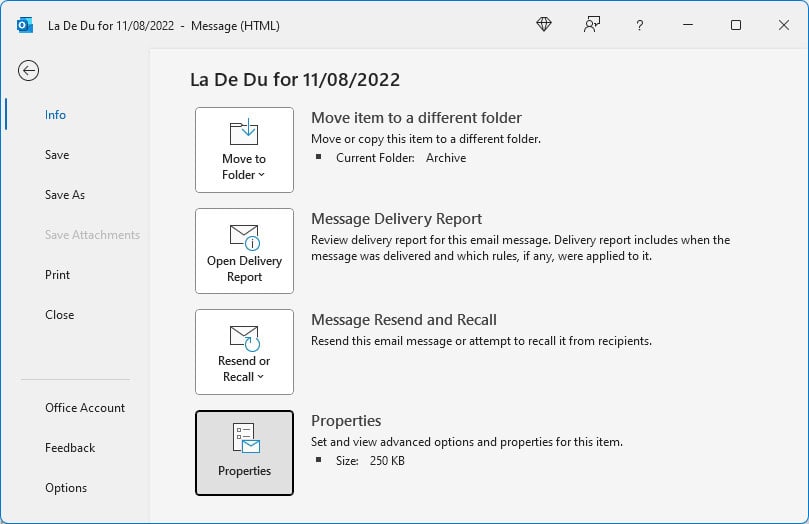
- Select File in the message window.
- Click Properties.
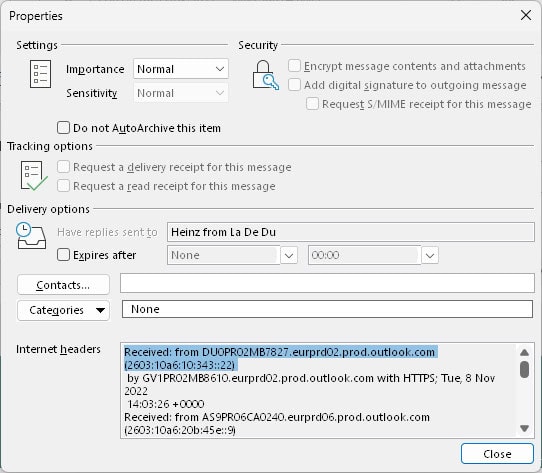
- Find the full email header lines under Internet headers.
- Click Close.
View Full Header Lines in New Outlook
In new Outlook for Windows, accessing the headers works just the way it does in Outlook.com by selecting View | View Message Source from a message’s three dots context menu.
On a Mac? How to View the Full Email Header in Outlook for Mac
How to View the Full Email Header in Outlook for Windows: FAQ
Can I view or copy the headers without opening the message first?
Yes.
To access header lines without opening an email in Outlook for Windows (either in its own window or the reading pane):
- Highlight the message whose header lines you would like to view in search results or its folder listing.
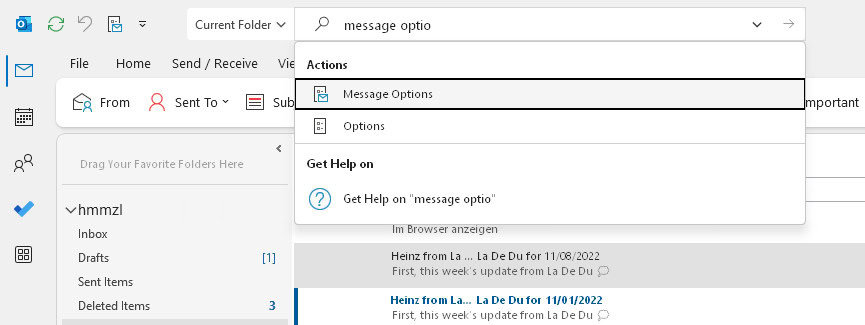
- Click the Search field on top.
Outlook keyboard shortcut: You can also press Ctrl E to focus the Search field. - Start typing
message options. - Select Message Options from the results.
- Find the full headers as above.
If you use Message Options frequently to get to full header lines, you can add the command to Outlook’s quick access toolbar in the title bar:
- Select File | Options in Outlook.
- Go to Quick Access Toolbar.
- Select All Commands under Choose commands from:.
- Highlight Message Options…
- Click Add >>.
- Now click OK.

Can I get the headers out of Outlook for easier analysis?
Yes.
To copy the header lines for an email in Outlook for Windows:
- Open full header display; see above.
- Click inside Internet headers.
- Press Ctrl A to select all text.
- Now press Ctrl C to copy it.
- Paste the headers for analysis elsewhere.
(Tested with Outlook for Windows Version 2305–2510 for Microsoft 365; first published June 2023, last updated November 2025)