
Had enough of starting at a screen that feels a little too bright and blue when the day is done? Linux can help with that, turning down bright blue light automatically to help you focus during the day and prepare for rest in the evening. Find out here how to use Night Light for warmer screen colors on Linux using Gnome or KDE ⤓.
On This Page
How to Use Night Light for Warmer Screen Colors on Linux
Using Gnome
Time needed: 3 minutes
To have Linux Gnome make the colors on the screen warmer automatically:
- Open Gnome Settings.
- Go to the Displays category.
- Now open Night Light.
- Turn on Night Light to enable scheduled changes of the color temperature.
Time-based: The night tinting always follows the schedule, so for warner colors to be in effect, both Night Light has to be enabled and the current time must fit the schedule.
- Choose a schedule under Schedule and the desired target tinting under Color Temperature.
Color changer: Night Light does change the colors as shown on screen; this will typically also affect the colors identified using a color picker.
Their word: Gnome include information on adjusting the color temperature in Gnome help.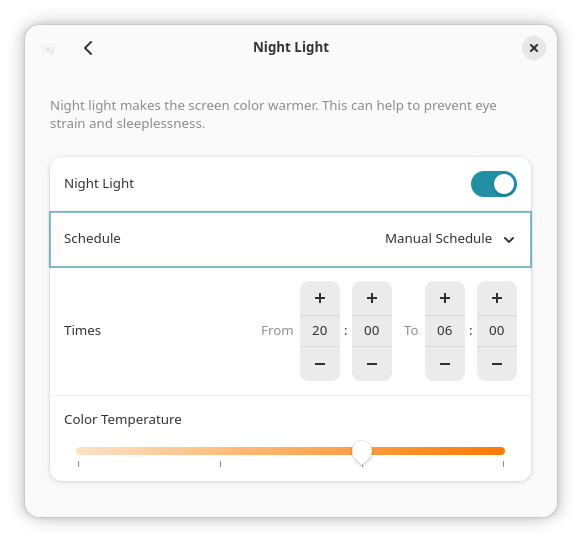
Quickly Toggle Off Gnome Night Shift
To temporarily turn off color tinting in Gnome, say for color-critical image editing:
- Open the quick settings menu from the Gnome menu bar.
Gnome keyboard shortcut: You can press Super S to open the menu sheet. - Click Night Light to disable screen tinting altogether until re-enabled.
Enable: Enable Night Light again using the same quick settings menu item
Stepped from arctic blue into cozy warmth?
Tips help fuel these email and tech how-tos.
Using KDE
To enable time-based changes to the color temperature for less blue light during the night using KDE Linux:
- Open the KDE System Settings app.
- Go to the Display & Monitor category.
- Open Night Light.
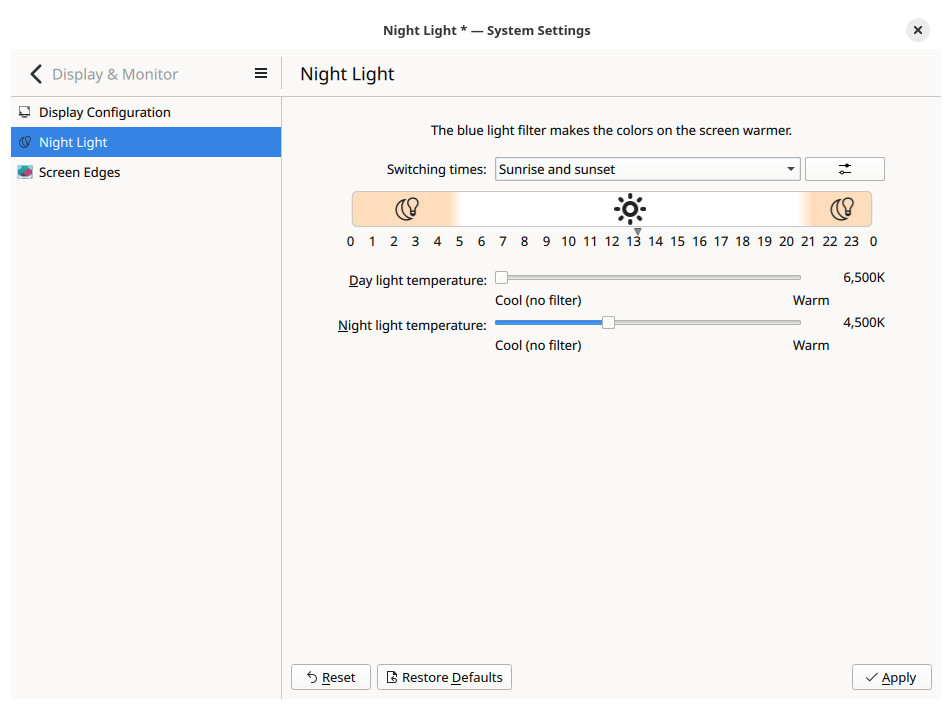
- Choose Sunrise and sunset for Switching times: for an automatic change to the color temperature.
On/off: Choose Always on night light instead to enable night light manually; select Always off to turn it off again.
Manual times: You can pick the time for sunset and sunrise; see below. - Select the color temperature to use for each state.
Kelvin: The temperature is given in Kelvin ranging from “cool” outdoor lighting (6500K) to extremely “warm” incandescent lighting (1000K). - Click Apply.
Quickly Toggle Night Light in KDE
To turn off the Night Light color shift temporarily in KDE, say for gaming:
- Click the display settings icon in the KDE status bar with the middle mouse button.
Here’s what happens: Night Light will be suspended and the color temperature return to normal until you middle-click the icon again.
Without a middle mouse button: You can also click the display settings icon, the enable Suspend under Night Light in the configuration sheet that comes up.
Keyboard shortcut: You can add a keyboard shortcut for toggling Night Light suspension in KDE System Settings under Shortcuts | Window Management.
Choose a Manual Night Light Schedule for KDE
To pick a schedule different from sunrise to sunset at your location for KDE Night Light:
- Open KDE System Settings.
- Go to the Day-Night Cycle category under Language & Time.
- Select Using custom times for Determine sunrise and sunset times:.
- Pick the times for sunrise and sunset as desired.
- Optionally, change the time allotted for changing from the day’s to nighttime color temperature Transition duration:.
Here’s why: Instead of abruptly changing the color temperature, you can set up an almost imperceptible change to warmer colors. - Click Apply.
Wallpaper: Sunrise and sunset times may also be used for other automatic adaptions in KDE, of course, such as changes of the wallpaper.
Using Redshift, Iris and Alternatives (Any Window Manager)
If you use neither the built-in night light options of Gnome and KDE, e.g. if you use a different window or session manager, you can still have your screen turn to warmer colors for the night shift, of course.
Common utilities to manage blue light with Linux include:
- Redshift (a classic a powerful utility, generally does not work with Wayland)
- wlsunset (a simple tool made to work with Wayland)
- Iris (comprehensive cross-platform solution also available as feature-limited Iris mini)
It’s late, but the screen should stay up, lit and awake? How to Keep Linux Awake and Prevent Screen Sleep
How to Manage Night Light for Warmer Screen Colors on Linux: FAQ
Night Light is on in Gnome, but I see no changes; what can I do?
If the Night Light in Gnome has no visible effect on the colors you see on the screen:
- Check the time falls into the period when Gnome’s Night Light is active. Turning on Night Light alone does not active the tinting, it always works on a schedule.
- Check color management is enabled for the display:
1. Go to the Color Management category.
2. Enable color management for all screens and pick a color profile.
Can I have night light turn on all day (and night)?
Yes, mostly.
To enable overall night light change of color temperature at all times, choose a manual schedule for your OS’s tinting and set it as follows:
- Gnome: starting and ending at the same time, say 0:00;
- KDE: starting and ending one minute apart, e.g. from 6:00 to 5:59 with a generous Transition duration.
Can I set specific apps to disable Night Light?
No, not with built-in tools.
Both Gnome and KDE will turn on Night Light on a schedule for all apps. You can easily turn off color temperature changes manually for specific work, though; see above.
Can I toggle Night Light using the command line?
Yes.
To turn on warmer colors with Gnome from the command line:
- Use the following terminal commands to enable Night Light:
gsettings set org.gnome.settings-daemon.plugins.color night-light-enabled true - Use the following commands to turn off Nigh Light:
gsettings set org.gnome.settings-daemon.plugins.color night-light-enabled false
KDE does not easily or reliably expose the setting to the command line.
What is night light and why would I want to use it?
Night light shifts colors toward the warmer end of the color spectrum automatically based on the time. Instead of like sunlight during the day, your screen will look more like a sunset, incandescent light or candle flame.
This may help avoid disruptions to sleep patterns through blue light (at the other end of the color spectrum) during the evening and light — or be just pleasant to look at.
Which temperature should I pick for night light?
Choose the color temperature that feels most agreeable to you. Try an initial value of 3500K–4500K as a starting point.
(Tested with Gnome 50 and KDE Plasma 6; first published June 2026)