
Tired of the clutter and distraction found on each new tab opened in Brave? How about a faster, cleaner and distraction-free start? Find out here how to use a blank new tab page (and window) in Brave browser.
First, Stripped Quill of Poultry
The images we see of people writing in the days of ink and quill as reconstructions are not all right, it seems.
Except sometimes for their aesthetic look, the large birds’ feathers were mostly stripped off the fluffy bits. Without these barbs, they were easier to handle as writing implements.
With that in mind, how about stripping the Brave browsing implement’s new tab page of its fluffy bits (and making it faster to load and handle)?
How to Use a Blank New Tab Page in Brave Browser
Time needed: 2 minutes
To set up Brave browser to open new tabs (and new windows) with about:blank:
- Click the hamburger menu button (Customize and control Brave) in Brave browser.
- Select Settings in the menu that has appeared.
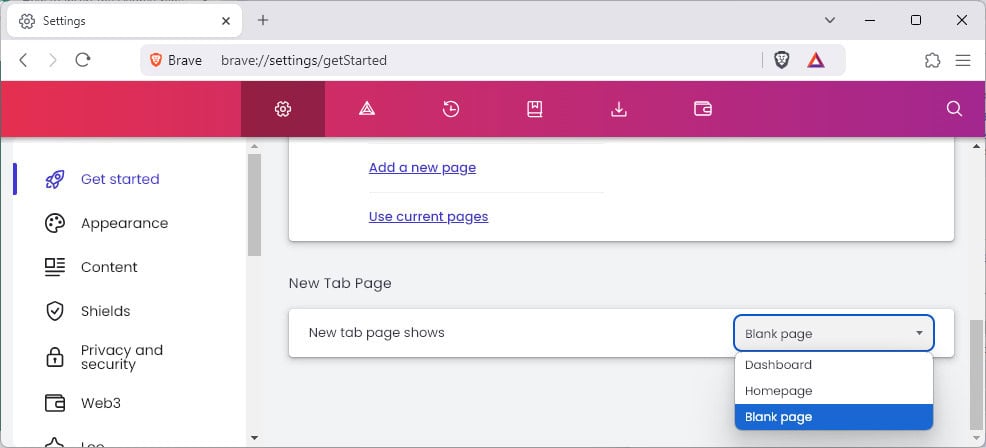
- Go to the Get started category.
Brave shortcut: You can open
brave://settings/getStartedin Brave to access the setting directly. - Select Blank page for New tab page shows.
How to Use a Blank New Tab Page in Brave Browser: FAQ
Will new windows in Brave also open with a blank page?
Yes.
With Brave’s new tab page set to the plank page, new windows will also open to an empty page.
Can I use Chrome new tab page extensions?
Yes.
In Brave developer mode, you can install and use Chrome extensions that set or customize the new tab page (including La De Du Truly Blank New Tab Page).
(Tested with Brave 1.65–1.84; first published May 2024, last updated November 2025)