

When all you have is a ZIP file, you do have all the files, of course — they’re just packed into that archive for now. They are not stuck there, though, just waiting for the right way out. Find out here how to unzip files on Linux ⤓ using Gnome Files, KDE’s Ark, and the terminal command line.
On This Page
How to Unzip Files on Linux (Gnome, KDE, Terminal)
Using Gnome
Time needed: 2 minutes
To extract files from a ZIP file using Gnome Files on Linux:
- Open Gnome Files.
Here’s how: Press Super (usually the Windows or Command key depending on your keyboard), start typing
filesand open the Files app. - Double-click the ZIP file you want to unzip.
Here’s what will happen: Without further question or confirmation, Files will extract all files from the ZIP file.
One file: If the ZIP file contains only one file, it will be extracted to the current directory.
Multiple files: If the ZIP file holds more than one file, they will all be extracted to a new folder named like the ZIP file.
Directories: Directories inside the ZIP file will be respected, of course.
It’s just a file in a ZIP 🎶?
Tips help fuel these email and tech how-tos.
Using KDE
To unzip files using the KDE Plasma desktop:
- Make sure the Ark compression app is installed.
No Ark: Without Ark, the KDE Dolphin file manager cannot unzip files; you can turn to unzipping using a terminal prompt, of course; see below. - Open the KDE Dolphin file browser.
- Navigate to the folder that contains the ZIP file you want to extract.
- Double-click the file to open it in Ark.
Not Ark: if the ZIP file does not open in Ark, you can click on it with the right mouse button and select Open With | Ark from the context menu. - Select Extract in Ark.
Extract some: To extract only certain files, select the files in the Ark file list; see below. - Choose the location where you want to put the extracted files.
- Now pick options for extracting.
New folder: Check Extraction into subfolder: to have all files placed in a new folder.
Keeping directories: Select Preserve paths when extracting to keep the folder structure contained in the ZIP file. - Click Extract.
Zip, zip, compress: How to Create ZIP Files on Linux (Gnome, KDE, Terminal)
Using a Terminal
To extract from a ZIP file on the Linux terminal command prompt:
- Open a terminal app.
Here’s which: Open Console on Gnome, for example, Konsole on KDE or Xterm, of course. - Navigate to the directory that contains the ZIP file to be extracted.
Here’s how: Use thecdcommand followed by the path to the directory.
Example:cd ~/Downloadswill take you to your account’s Downloads folder (the tilde~stands in for your home directory). - Type
unzip -u <filename.zip>.
Here’s why: The option -u makes unzip keep newer versions of files if they already exist; a file from the ZIP file will only overwrite an already existing file if it is newer.
Individual files: You can also specify files (or types of files) to extract; see below.
Examples:unzip -u ladedu.zipextracts all files from the file ladedu.zip to the current directory, asking to overwrite older files and ignoring new files already present.unzip -ou ladeduextracts all files from ladedu.zip except files already present and newer without asking before overwriting files. - Press Enter.
Their word: Ubuntu include information on unzip in its man page.
Also on a Mac: How to Unzip Files on a Mac
How to Unzip Files on Linux: FAQ
How do I extract only one file from a ZIP?
Using Ark
To extract just select files from a ZIP file using Ark:
- Open the ZIP file in Ark; see above.
- Highlight the individual documents you want to extract.
Here’s how: Hold the Ctrl key while you click to toggle inclusion of a file in the selection and hold Shift to select a range.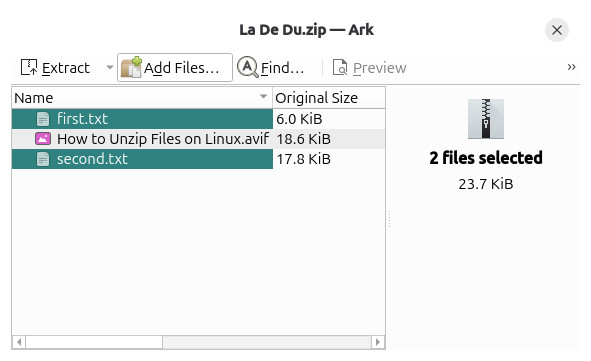
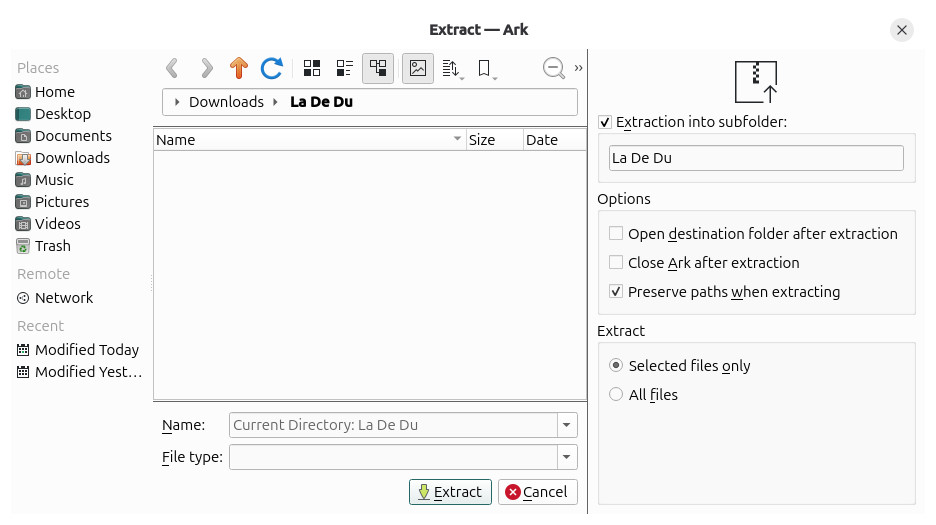
- Click Extract in the toolbar.
Ark keyboard shortcut: You can press Ctrl E to start extracting. - Check Selected files only is selected under Extract.
Optional: Pick a folder where the extracted files should appear and choose whether Ark should create a new folder (Extract into subfolder:). - Click Extract.
Using the Command Line
To extract select files from a ZIP archive on the Linux command line:
- Run
unzip -l <archive.zip>on the command line.
Here’s why: This command lists the files found in the ZIP file. - Now run
unzip <archive.zip> <files>to unzip only the files listed under <files>; separate files with white space.
Wildcards: You can use wildcards like, most typically,*to stand in for anything.
Examples:unzip ladedu first.txt second.txtwill extract the files fist.txt and second.txt from the ZIP file ladedu.zip.unzip ladedu *.txtwill extract all TXT files from the archive.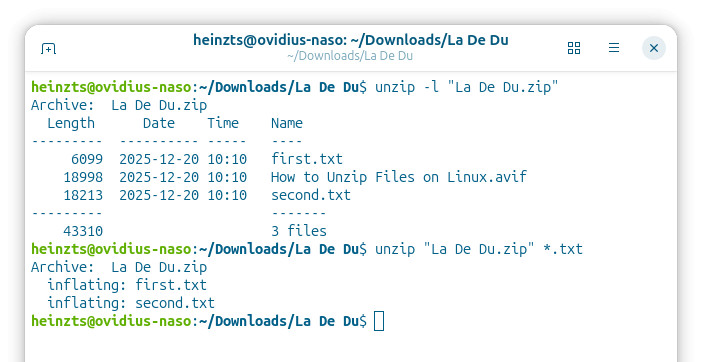
(Tested with Gnome 49–50, Ark 25.12 and unzip, first published December 2025, last updated June 2026)