

When all you have is a ZIP file, you do have all the files, of course — they’re just packed into that archive for now. They are not stuck there, though, just waiting for the right way out. Find out here how to unzip files on Linux using Gnome Files, KDE’s Ark, and the terminal command line.
First, One Smaller Step
In second grade, Ms. Edson made an impression on Becky Kennedy that stuck. Her mantra was simple: “If something feels too hard to start, it just means that the first step isn’t small enough.”
That is sane advice, of course. If a file feels too big to open, it usually just means your Linux machine still needs to unzip it — in small and easy steps:
How to Unzip Files on Linux (Gnome, KDE, Terminal)
Using Gnome
Time needed: 2 minutes
To extract files from a ZIP file using Gnome Files on Linux:
- Open Gnome Files.
Here’s how: Press Super (usually the Windows or Command key depending on your keyboard), start typing
filesand open the Files app. - Double-click the ZIP file you want to unzip.
Here’s what will happen: Without further question or confirmation, Files will extract all files from the ZIP file.
One file: If the ZIP file contains only one file, it will be extracted to the current directory.
Multiple files: If the ZIP file holds more than one file, they will all be extracted to a new folder named like the ZIP file.
Directories: Directories inside the ZIP file will be respected, of course.
Zip, zip, compress: How to Create ZIP Files on Linux (Gnome, KDE, Terminal)
Using KDE
To unzip files using the KDE Plasma desktop:
- Make sure the Ark compression app is installed.
No Ark: Without Ark, the KDE Dolphin file manager cannot unzip files; you can turn to unzipping using a terminal prompt, of course; see below. - Open the KDE Dolphin file browser.
- Navigate to the folder that contains the ZIP file you want to extract.
- Double-click the file to open it in Ark.
Not Ark: if the ZIP file does not open in Ark, you can click on it with the right mouse button and select Open With | Ark from the context menu. - Select Extract in Ark.
Extract some: To extract only certain files, select the files in the Ark file list; see below. - Choose the location where you want to put the extracted files.
- Now pick options for extracting.
New folder: Check Extraction into subfolder: to have all files placed in a new folder.
Keeping directories: Select Preserve paths when extracting to keep the folder structure contained in the ZIP file. - Click Extract.
Using a Terminal
To extract from a ZIP file on the Linux terminal command prompt:
- Open a terminal app.
Here’s which: Open Console on Gnome, for example, Konsole on KDE or Xterm, of course. - Navigate to the directory that contains the ZIP file to be extracted.
Here’s how: Use thecdcommand followed by the path to the directory.
Example:cd ~/Downloadswill take you to your account’s Downloads folder (the tilde~stands in for your home directory). - Type
unzip -u <filename.zip>.
Here’s why: The option -u makes unzip keep newer versions of files if they already exist; a file from the ZIP file will only overwrite an already existing file if it is newer.
Individual files: You can also specify files (or types of files) to extract; see below.
Examples:unzip -u ladedu.zipextracts all files from the file ladedu.zip to the current directory, asking to overwrite older files and ignoring new files already present.unzip -ou ladeduextracts all files from ladedu.zip except files already present and newer without asking before overwriting files. - Press Enter.
Also on a Mac: How to Unzip Files on a Mac
How to Unzip Files on Linux: FAQ
How do I extract only one file from a ZIP?
Using Ark
To extract just select files from a ZIP file using Ark:
- Open the ZIP file in Ark; see above.
- Highlight the individual documents you want to extract.
Here’s how: Hold the Ctrl key while you click to toggle inclusion of a file in the selection and hold Shift to select a range.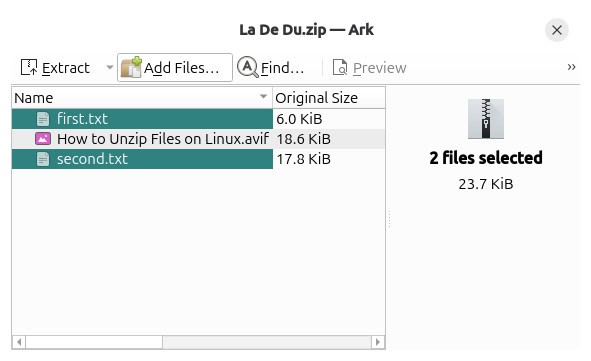
- Click Extract in the toolbar.
Ark keyboard shortcut: You can press Ctrl E to start extracting. - Check Selected files only is selected under Extract.
Optional: Pick a folder where the extracted files should appear and choose whether Ark should create a new folder (Extract into subfolder:). - Click Extract.

Using the Command Line
To extract select files from a ZIP archive on the Linux command line:
- Run
unzip -l <archive.zip>on the command line.
Here’s why: This command lists the files found in the ZIP file. - Now run
unzip <archive.zip> <files>to unzip only the files listed under <files>; separate files with white space.
Wildcards: You can use wildcards like, most typically,*to stand in for anything.
Examples:unzip ladedu first.txt second.txtwill extract the files fist.txt and second.txt from the ZIP file ladedu.zip.unzip ladedu *.txtwill extract all TXT files from the archive.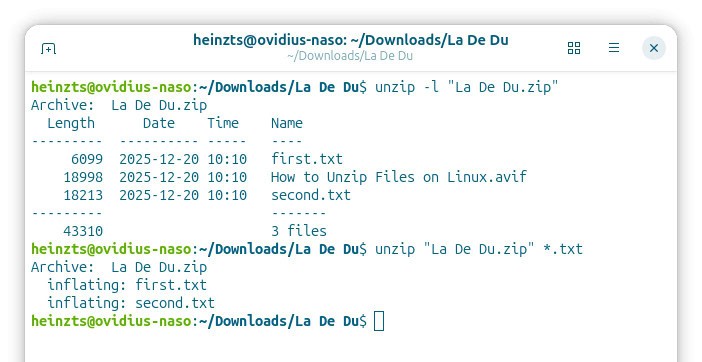
(Tested with Gnome 49, Ark 25.12 and unzip)