
Need to invoice a client in London or jot down prices in pounds — but the £ symbol is nowhere to be seen on your keyboard? Find out here how to type the pound symbol ( £ ) on a Windows PC ⤓, whether by shortcut key, emoji panel or good old copy and paste when all else fails.
On This Page
How to Type the Pound Currency Symbol ( £ ) on a Windows PC
Using the Keyboard to Enter ‘£’
Time needed: 1 minute
To insert the pound currency symbol ( £ ) using the keyboard on Windows 11 or Windows 10:
- Position the text insertion cursor where the pound sign should appear.
Here’s where: As a currency symbol, the pound sign comes before number, separated from it only using a narrow non-breaking space (or no space at all).
- Do change to the U.S. English-International keyboard layout if it is not your default.
Here’s how: Add the keyboard layout in Settings, then press Windows Space until United States-International is the currently selected keyboard layout.
UK: You can also type the pound symbol using the United Kingdom keyboard layout, of course; see just below. - Press AltGr Shift 4 to type
£.United Kingdom: Using the UK keyboard layout, press Shift 3 for the pound symbol.
£ this helpful?
Tips help fuel these email and tech how-tos.
Using the Touch Keyboard to Type the Pound Symbol
To type the pound sign using the touch keyboard on Windows:
- Put the text cursor where you want to insert the ‘£’ symbol.
- Bring up the Windows touch keyboard.
- Tap or click &123.
- Now tap or click and hold $.
- Move the focus to highlight £.
- Let go of the mouse or touchscreen.
Their word: Microsoft include information on the touch keyboard in Windows help.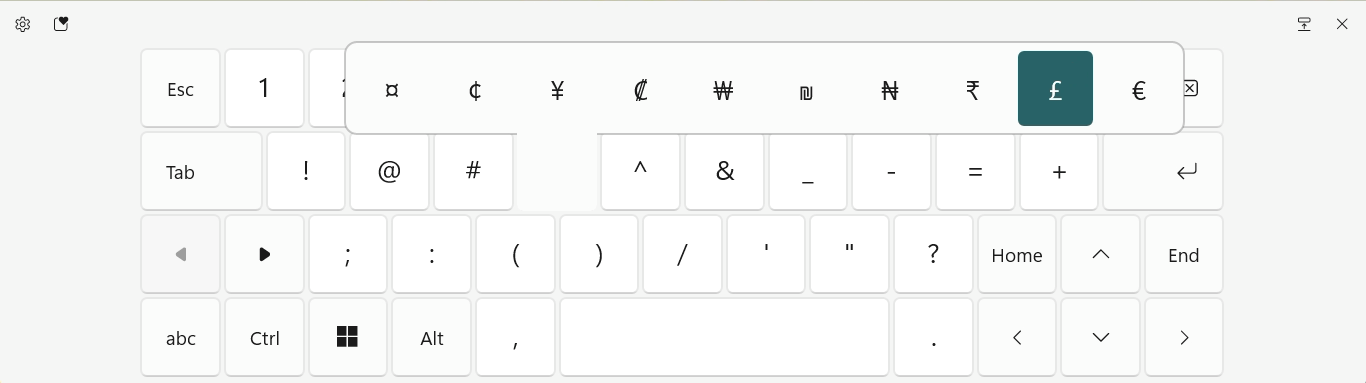
On a Mac? How to Insert the Pound Currency Symbol ( £ ) on a Mac
Using the Windows Emoji Keyboard to Input £
To enter the pound currency symbol with the Windows emoji panel:
- Open the Windows emoji panel.
Windows keyboard shortcut: You can press Windows . (period) to bring up the emoji keyboard. - Go to the %⟳△+ (Symbols) category.
Windows 10: Choose Ω. - Select Currencies.
- Click £ to insert the pound symbol.

How to Type the Pound Currency Symbol ( £ ) on a Windows PC
Can I copy the pound sign for pasting?
Yes, naturally.
Use the table below to copy the desired pound symbol for pasting anywhere on Windows:
Pound sign £ |
Full-width pound sign £ | |
Pound banknote 💷 |
Is there a Windows “Alt” Code for the Pound Symbol?
Yes.
To produce the pound sign using its Windows “Alt” code:
- Turn o the number block on the keyboard.
Here’s how: Press NumLock to enable the number keypad. - Press and hold Alt.
- Now press 0 1 6 3 on the number keypad.
- Release the Alt key.
How is the pound symbol different from the Lira symbol?
The symbols for pound and lira typically (but not necessarily!) differ in the number of horizontal bars. The pound is currently typically shown with one crossbar, the lira with two:
| Currency | No. of bars | Symbol |
|---|---|---|
| Pound | 1 (sometimes 2) | £ |
| Lira | 2 (sometimes 1) | ₤ |
Can I use the Lira symbol for the Pound and vice versa?
Yes, if necessary.
Since the display of the two symbols is quasi interchangeable, the visual difference is negligible. Screen readers may read the character with the wrong currency, though.
(Tested with Windows 11 Version 24H2–25H2; first published June 2025, last updated August 2026)