
Looking to make intermissions look right typographically or give a range of numbers with a dash that is neither too long nor too short — but struggling to find the appropriate dashes on your keyboard? Find out here how (and when) to effortlessly type em dash ( — ) and en dash (–) on Windows ⤓.
First, Counting Days from February to March
Counting days is barely easy, especially across two months, and worse from February to March.
In Sweden and the 15th century, you had to choose between 28, 29 and 30 (yes, 30, a story of its own) days for February, except for the year 1753, when February had a total of 17 days (to finally synchronize Sweden’s calendar with the Gregorian counting already introduced in Norway and Denmark, for example — with similarly “missing” days).
Maybe we should just write Feb 5–Mar 1 and let the reader do the counting?
How to Type Em Dash (—) and En Dash (–) on Windows 10/11
Using the Em Dash and En Dash Alt Codes
Time needed: 1 minute
To insert the long em dash and en dash hyphens anywhere on Windows using Alt codes:
- Position the text cursor where you want the character to appear.
Here’s where: Both the en dash for ranges and the em dash for intermissions and interruptions are not typically separated from the surrounding characters with whitespace (though there are exceptions).
Example: I visited Davos — not too picturesque a setting itself — from June 9–August 27. - Press and hold the Alt key.
- Type 0 1 5 1 on the numeric keypad for em dash and 0 1 5 0 for en dash.
Word: In Word, getting to em and en dash is easier in Word; see below.
Laptops without numeric keypad: It’s best to use the on-screen keyboard; see below.
Using the Windows Touch On-Screen Keyboard
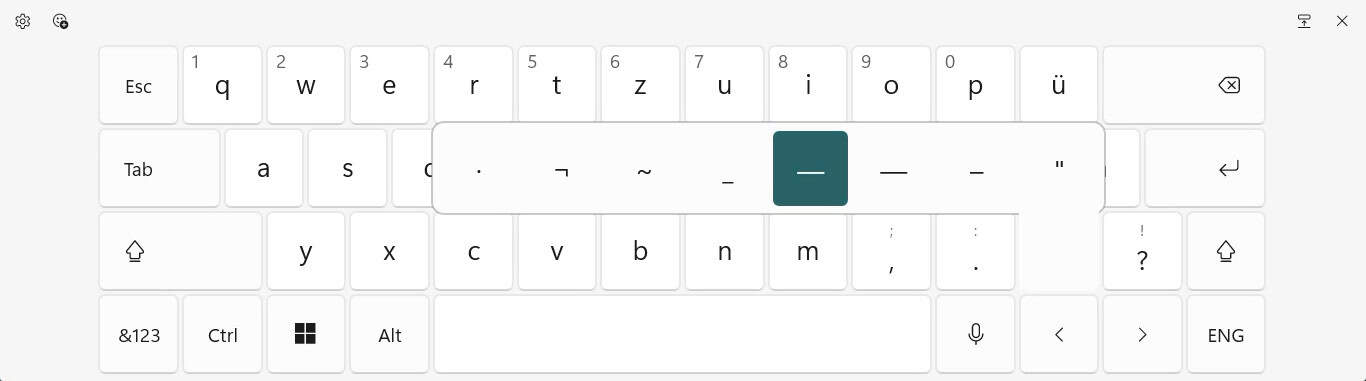
To input em dash or en dash characters swiftly using the Windows on-screen (touch) keyboard:
- Position the text input cursor where you want to insert the dash.
- Bring up the Windows touch keyboard.
- Click or tap and hold the - (dash) key on the touch keyboard.
- Move the cursor until the em dash — or en dash – key is highlighted.
- Release the mouse cursor or remove your finger to insert the highlighted character.
Done typing — ? Automate it:
Instant unlock code • private offline app • one-time → lifetime • no ads
Locating Em Dash in the Windows Emoji Panel
To use the Windows 11 emoji panel to insert — or –:
- Put the text cursor where the em dash or en dash is to appear.
- Open the Windows emoji panel.
Here’s how: Press Windows . (period), for example, to open the emoji panel. - Go to the Symbols tab.
- Scroll to General punctuation.
- Click or tap the em dash — or en dash – character to insert it.
No search: The eomiji panel knows no descriptions for its characters, so you cannot search fordash, for example, only locate the characters by appearance.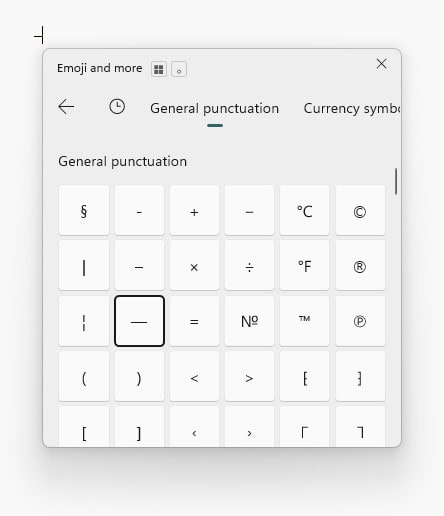
On a Mac? How to Insert Em-Dash ( — ) and En-Dash ( – ) on a Mac
Using Linux? How to Insert En Dash – and Em Dash — on Linux
Using Windows Character Map to Insert Em Dash and En Dash
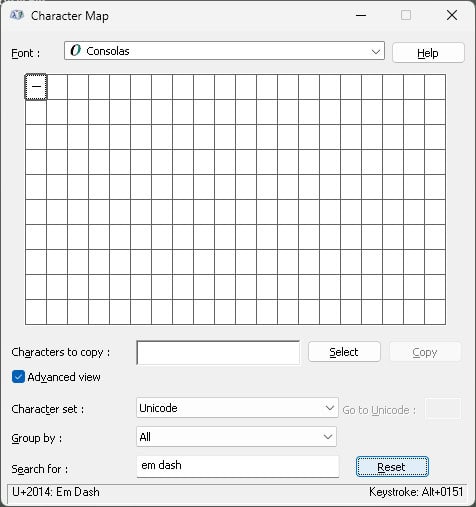
To input en- and em dash using the Windows Character Map application:
- Open Character Map.
Here’s how: Open the Windows Start menu, for example, search forcharacter map, and select Character Map. - Click the Search for : field.
No search: If you do not see Search for :, check Advanced view first. - Type
em dashoren dashfor the respective characters. - Now click Search.
- Highlight the desired character.
- Click Select.
- Now click Copy to copy em or en dash to the clipboard for pasting.
Using Copy and Paste to Input Em Dash and En Dash
Instead of typing Alt-codes or juggling on-screen utilities, you can also paste the dash characters, of course.
Em dash — | |
En dash – |
How to Insert Em Dash and En Dash in Word for Windows
Word for Windows includes its own shortcuts as well as text replacement that make inserting dashes easier.
How to Type Em Dash (—) and En Dash (–) on Windows 10/11: FAQ
Can I enter em dash or en dash with the Windows 10 emoji panel?
No.
The emoji panel does not include hyphens on Windows 10.
How do I insert em dash and en dash using LaTeX?
To insert an em dash in LaTeX, you can use \textemdash; for en dash, employ \textendash, for example.
🚀 Instant Alternative
No more Windows shortcuts. Typography Fixer PRO converts -- → — with Ctrl+F.
Get Typography Fixer PRO ($3) →Offline PWA • Lifetime access • No ads
(Tested with Windows 10 Version 22H2 and Windows 11 Version 23H2–25H2; first published March 2024, last updated January 2026)