

[Archived] Tried to open Mail for Windows and got Outlook instead? Missing the simple and streamlined experience of Mail? Find out here how to switch back from Outlook for Windows to Windows Mail ⤓ (at least temporarily).
On This Page
How to Switch from Outlook to Microsoft Mail for Windows
This is an archived article.
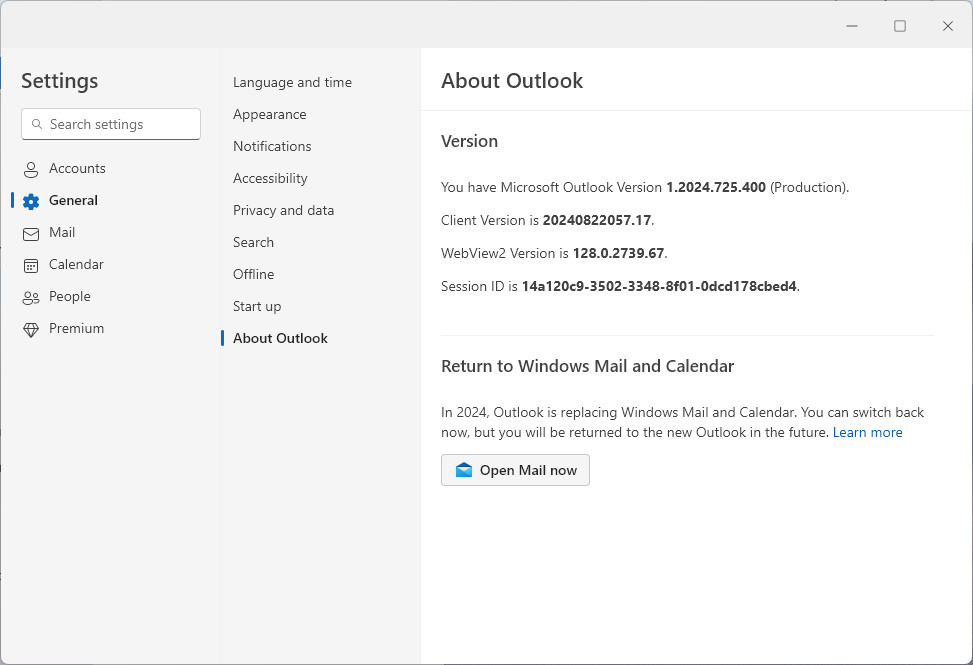
To open Microsoft Mail for Windows from Outlook for Windows (if the latter has launched instead of Mail):
- Click the settings gear icon (⚙) in Outlook for Windows.
- Open the General category.
- Select About Outlook.
- Click Open Mail now.
- Click Skip Feedback or submit feedback about Outlook for Windows if you see the prompt to do so.
Forward to the past?
Tips help fuel these email and tech how-tos.
How to Switch from Outlook to Microsoft Mail for Windows: FAQ
Can I return to Mail for Windows permanently?
No.
Microsoft no longer maintains or updates Mail for Windows, and Outlook for Windows replaces it. Windows will continue to make Outlook the app that launches when you open Mail. For the time being, you can return to Mail using the method above to export existing emails and contacts from Mail.
(Tested with Outlook for Windows 1.2024 and Windows 11 Version 23h2; first published September 2024, last updated February 2025)