

Windows with countless panels and knobs, choices and alerts keep popping up in Google Chrome when all you did and wanted was… nothing? Chrome makes Developer Tools to analyze, edit and debug websites easily accessible — too easily at times. Find out here how to prevent Chrome Developer Tools from opening accidentally on Windows ⤓ by overriding keyboard shortcuts or disabling access to DevTools entirely.
On This Page
How to Prevent Developer Tools in Google Chrome on Windows from Opening Accidentally
⚡ Quick Fix
Remap F12 and Ctrl Shift I for Chrome to “no action” using MS PowerToys Keyboard Manager or AutoHotkey to prevent DevTools from popping up accidentally.
Set DeveloperToolsAvailability to 2 in Registry Editor under [HKEY_CURRENT_USER\Software\Policies\Google\Chrome] to disable Developer Tools altogether.
Disable the Developer Tools Keyboard Shortcuts in Google Chrome
Time needed: 3 minutes
To stop Developer Tools in Google Chrome from opening accidentally on a Windows computer using keyboard shortcuts:
- Turn on Keyboard Manager in Microsoft PowerToys for Windows.
Here’s how: Install and launch MS PowerToys, then turn on Keyboard Manager in the Input & Output section.
Finding: You can use the Search for settings field to quickly jump to Keyboard Manager. - Open the Keyboard Manager editor for keybindings.
Here’s how: Open PowerToys and click Keyboard Manager under Quick access.
PowerToys keyboard shortcut: You can also press Windows Shift Q to open the Keyboard Manager editor. - Select Add new remapping.
- Choose Key or shortcut for Trigger.
- Now select Press to start recording keys.
- Press F12.
Global: Since Keyboard Manager can only remap function keys such as F12 globally, the key will be disabled for all apps; if you want to remap the function key only for Chrome, you can use AutoHotkey instead — see below.
- Choose Disable key or shortcut for Action.
- Click Save.
- Add further remappings for Ctrl Shift I, Ctrl Shift J and Ctrl Shift C.
Here’s why: Ctrl Shift I opens the last-used Developer Tools panel, Ctrl Shift J the console and Ctrl Shift C the Elements panel.
Action: Let the action be Disable key or shortcut.
Only Chrome: Here, you can restrict the remapping to Chrome; check Only apply to a specific app and enterchrome.exeunder App name.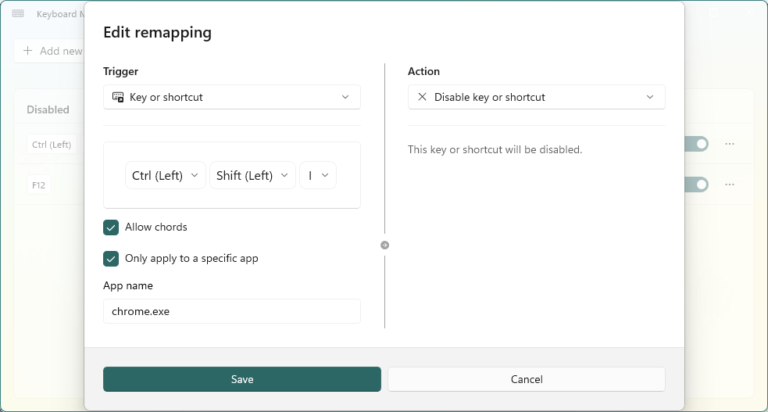
Chrome de-tooled?
Tips help fuel these email and tech how-tos.
Disable Chrome Developer Tools Keyboard Shortcuts Using AutoHotkey
To set up AutoHotkey for disabling DevTools keyboard shortcuts in Chrome:
- Use this snippet in a AutoHotkey script running in the background:
#Requires AutoHotkey v2.0
#SingleInstance force

#HotIf WinActive("ask_class Chrome_WidgetWin_1")
F12::return
^+i:return
^+j:return
^+c:return
The equivalent script for AutoHotkey v1:#IfWinActive ahk_class Chrome_WidgetWin_1
F12::return
^+i::return
^+j::return
^+c::return
Disable Access to Developer Tools Entirely
If you’re not using developer tools in Chrome, you can also prevent them from opening altogether using a Windows registry entry.
To turn off access to Chrome Developer Tools on Windows:
- Quit Google Chrome.
- Download the Disable-Chrome-Developer-Tools.zip file.
- Extract the .REG file.
SHA-256: You can check the integrity of the file using the following SHA-256 checksum — or just examine the contents of the file; see below.c4ae7a818ea5af52b8d4dc417adf8c6c4892253db602609cc45f4080aaedbdff - Install the .REG file.
Here’s how: Select Merge from the context menu in Windows Explorer, for example. - Restart Google Chrome.
Enable DevTools: Use the .REG file from Enable-Chrome-Developer-Tools.zip (SHA-25635056800a7d482359859805ce41e48bd9aa3f1cd573056e3c7073bb90988d4f3) to enable Developer Tools again.
How to Prevent Accidentally Opening Developer Tools in Google Chrome on Windows: FAQ
What is the content of the .REG file to disable Developer Tools?
Here is the complete content of the .REG file. You can also set the value manually in Registry Editor, of course, or copy and paste the content to a text document you save as a .REG file.
Windows Registry Editor Version 5.00

[HKEY_CURRENT_USER\Software\Policies\Google\Chrome]
"DeveloperToolsAvailability"=dword:00000002
With Developer Tools disabled using the Windows Registry, can I still allow them for my site?
Yes.
You can override disabled Developer Tools for individual domains using the Windows Registry:
- Add a new string entry to [HKEY_CURRENT_USER\Software\Policies\Google\Chrome\DeveloperToolsAvailabilityAllowlist] with the domain as its data.
Names: Values are named 1, 2, 3, 4, etc.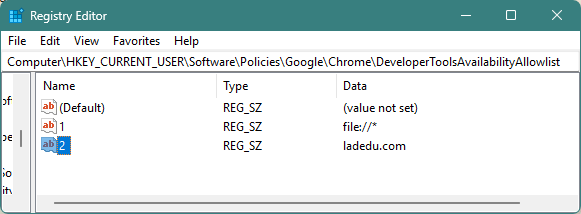
Can I remove the “Inspect” item from the context menu in Chrome?
No.
Chrome does not offer an option for removing the Inspect context menu item. Disabling access to Developer Tools also does not remove the menu item, just renders it useless (except on websites where Developer Tools are allowed).
Can I build a Chrome extension to remove “Inspect”?
No.
Chrome explicitly disallows extensions to manipulate the default context menu. You cannot remove the Inspect entry without replacing the context menu entirely.
(Tested with Google Chrome 153–154; first published September 2026)