
Finished writing your email and drag the file in — only to be stopped by a red “attachments are limited” message? Proton Mail, secure as it is, imposes strict attachment size limits. No need to despair, though. Find out here how to share large files using Proton Drive ⤓ — and include the link gracefully with your Proton Mail message.
On This Page
How to Share Large Files with Proton Drive (Proton Mail Workaround)
Share a File as a Public Link (Anybody with the Link Can Download)
Time needed: 3 minutes
To send a link to a file you share through Proton Drive to any email address using Proton Mail:
- Locate or upload the file you want to share in Proton Drive.
Here‘s how: You can drag and drop files from your computer onto Proton Drive in a browser to upload.
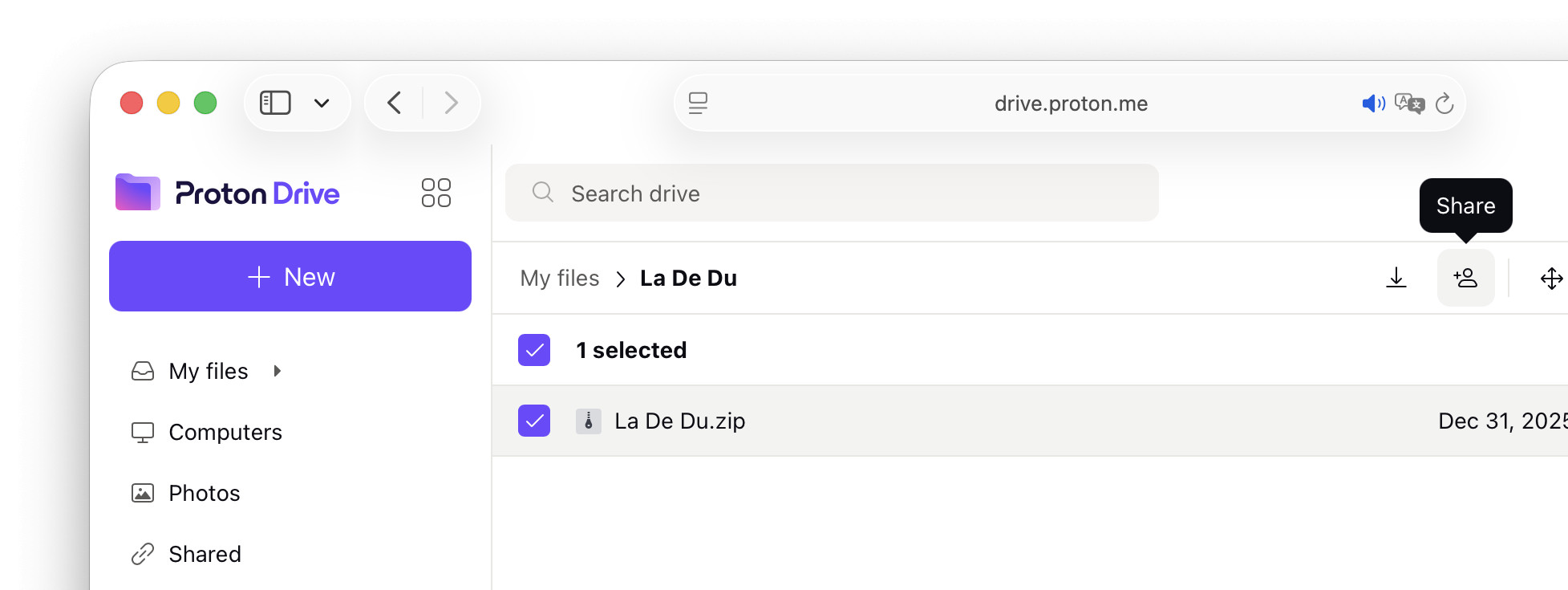
- Highlight the file.
Here’s how: Click the file or check the box in front to select it.
Multiple files: Sharing only works for individual files. - Click Share in the toolbar.
- Turn on Create public link.
Here’s why: This makes sure anybody with the link can download the file you want to send.
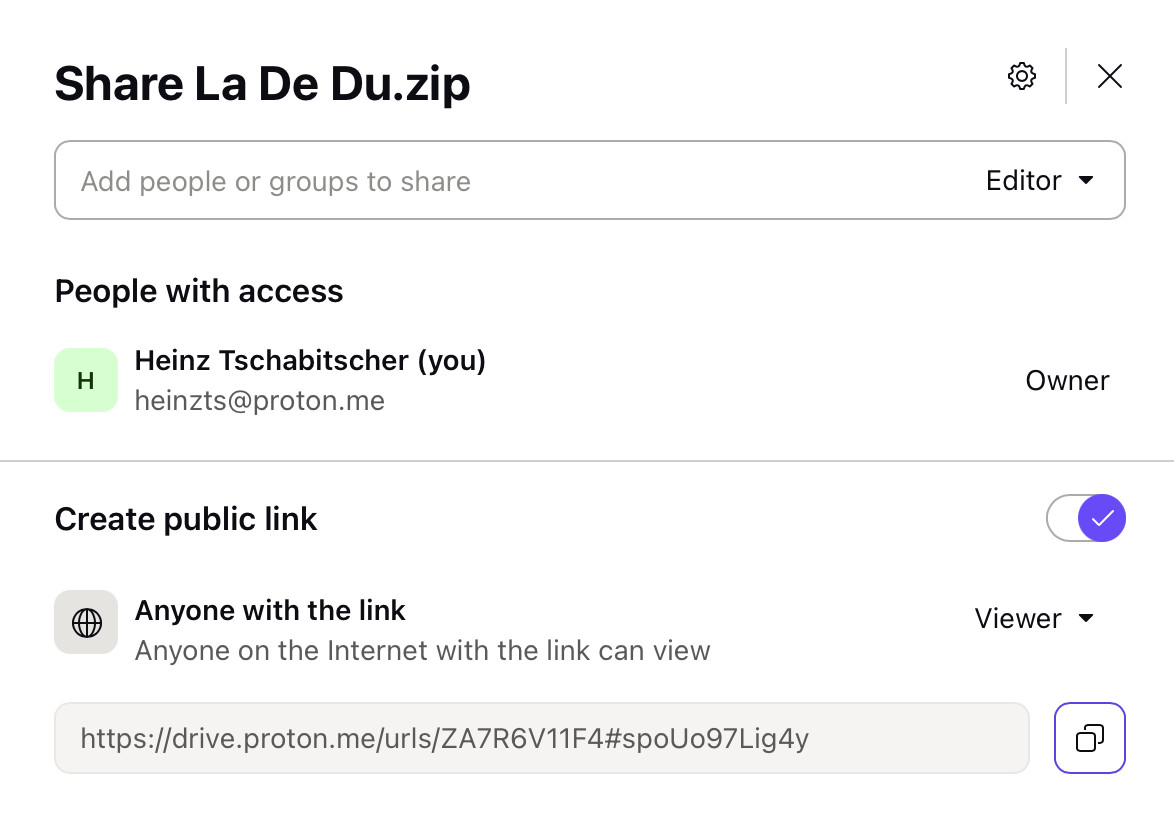
- Select Viewer under Anyone with this link.
Here’s why: This gives recipients read-only permission.
- Optional: Set an expiration date for the link.
Here’s why: Having the file available only for a limited time offers some protection against it getting into unwanted hands.
Here’s how: Click the Share via link settings gear icon in the sharing sheet, enable Set expiration date, pick a date and click Save Changes.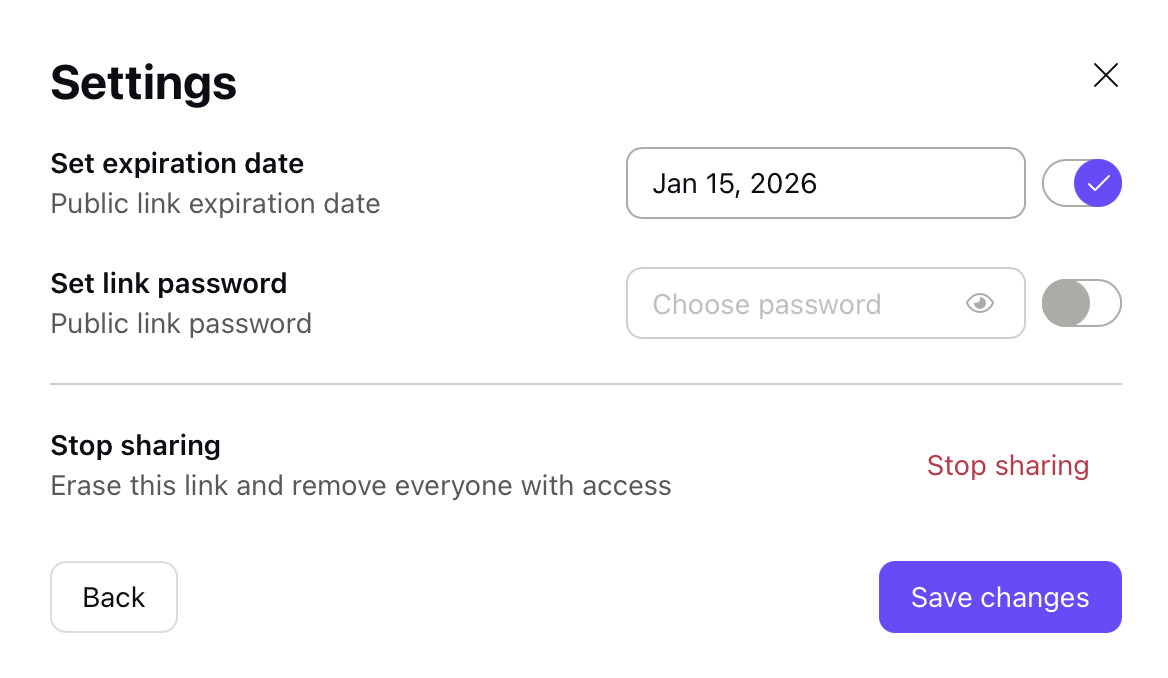
- Optional: Protect the download with a password.
Here’s why: Especially if you share the password independently from the link — e.g. in person — , it protects against unwanted people downloading your file.
Here’s how: Open Share via link settings, enable Set link password and pick a password. - Copy the link to share.
Here’s how: You can highlight the URL under Create public link and copy it using your operating system or click the copying button next to the field.
- Click x to close the sharing sheet.
- Go to Proton Mail.
Here’s how: Click the Proton applications icon and pick Proton Mail.
- Start a new email.
Here’s how: Click New message.
- Click in the message body and paste the link you copied in Proton Drive.
Here’s how: Typically press Ctrl V (Windows, Linux) or Command V (Mac) to paste; on mobile devices, tap to bring up a context menu and select Paste.
- Address the email, compose text to introduce the link and eventually click Send.
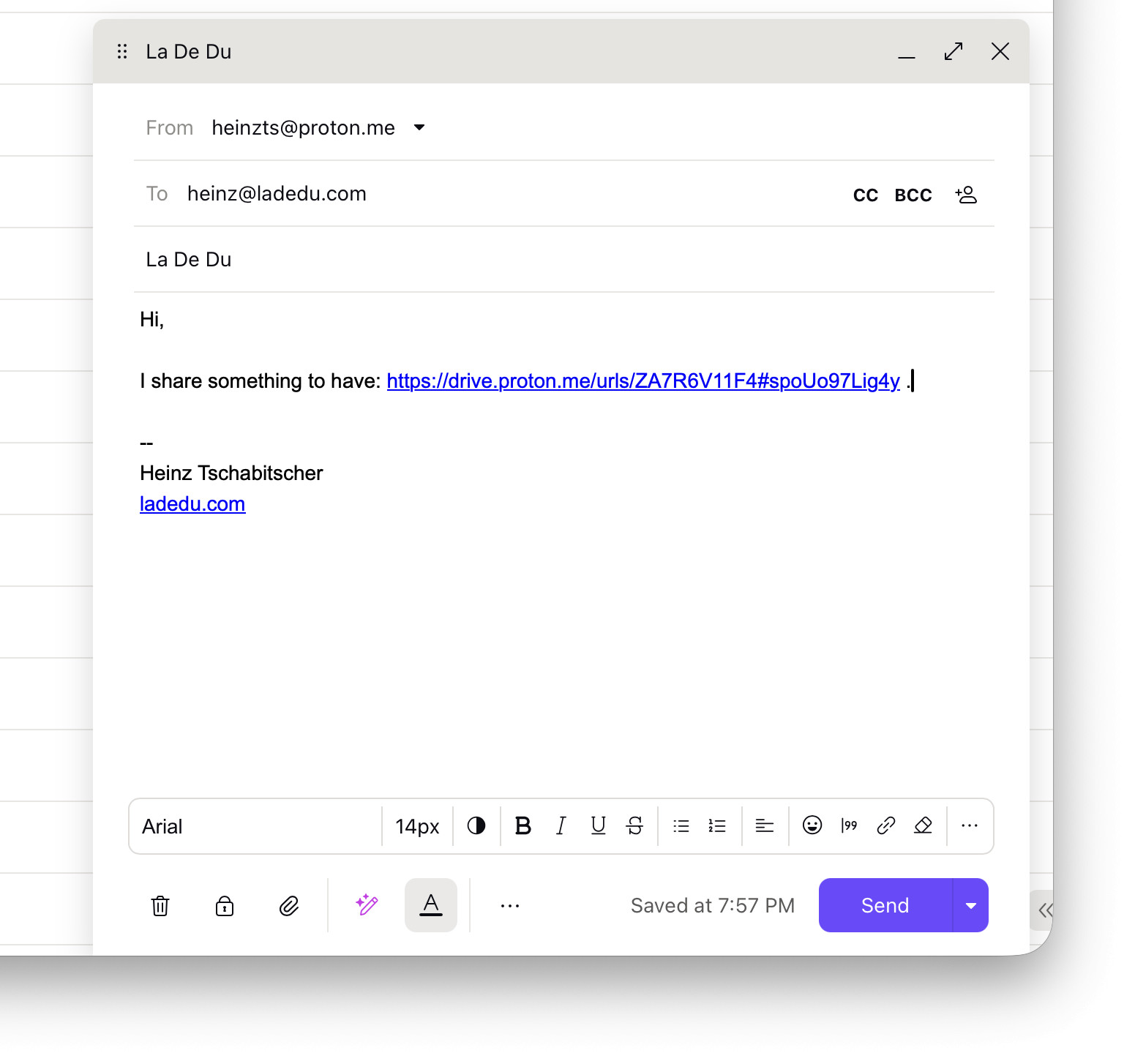
All sent and done?
Tips help fuel these email and tech how-tos.
Share Privately (Recipients Need to Set up Proton Account)
To share a file from Proton Drive with full end-to-end encryption with select recipients:
- Find or upload the file you want to share securely in Proton Drive.
- Select the file to share.
- Click Share in the Proton Drive toolbar.
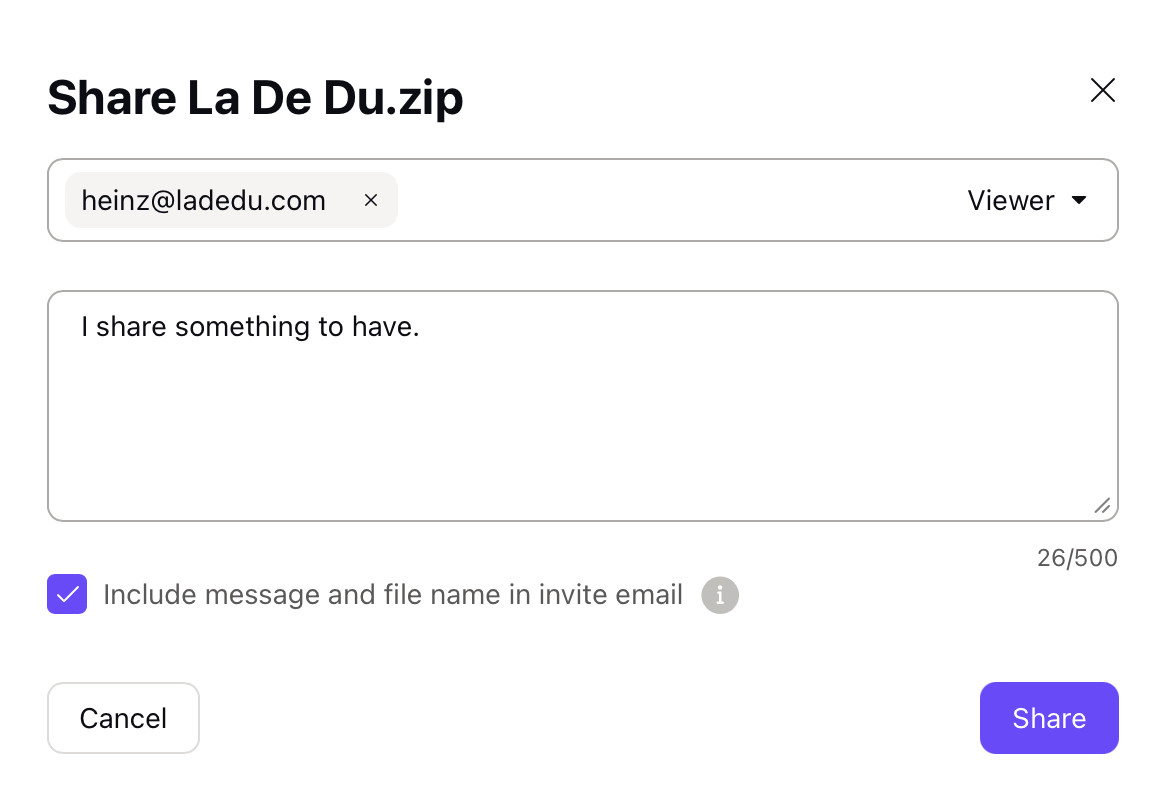
- Type the email address of the recipient over Add people or groups to share.
- Choose whether recipients can make changes.
Here’s how: Select Viewer for the recipient to let the only see and download; pick Editor for writing permissions.
Here’s why: The Editor role is most useful for documents and spreadsheets, of course. - Enter the body text for the email that announces the file sharing over Message.
- Optional: Turn off Include message and file name in invite email.
Here’s why: Disabling this option ensures the file name as well as your invitation text are visible only after logging in to a Proton Account. - Click Share.
For smaller files: This Is the Maximum Attachment Size in Proton Mail
How to Share Large Files with Proton Drive (Proton Mail Workaround): FAQ
What will recipients of a public link from Proton Drive see?
When recipients follow the link to Proton Drive, they will see a preview (if possible) and a download link.
I accidentally shared a link publicly. Can I turn off sharing immediately?
Yes.
To stop public access via a shared link in Proton Drive
- Open the sharing sheet for the file you want to make private again.
- Turn off Create public link.
Can I revoke access to a privately shared file?
Yes.
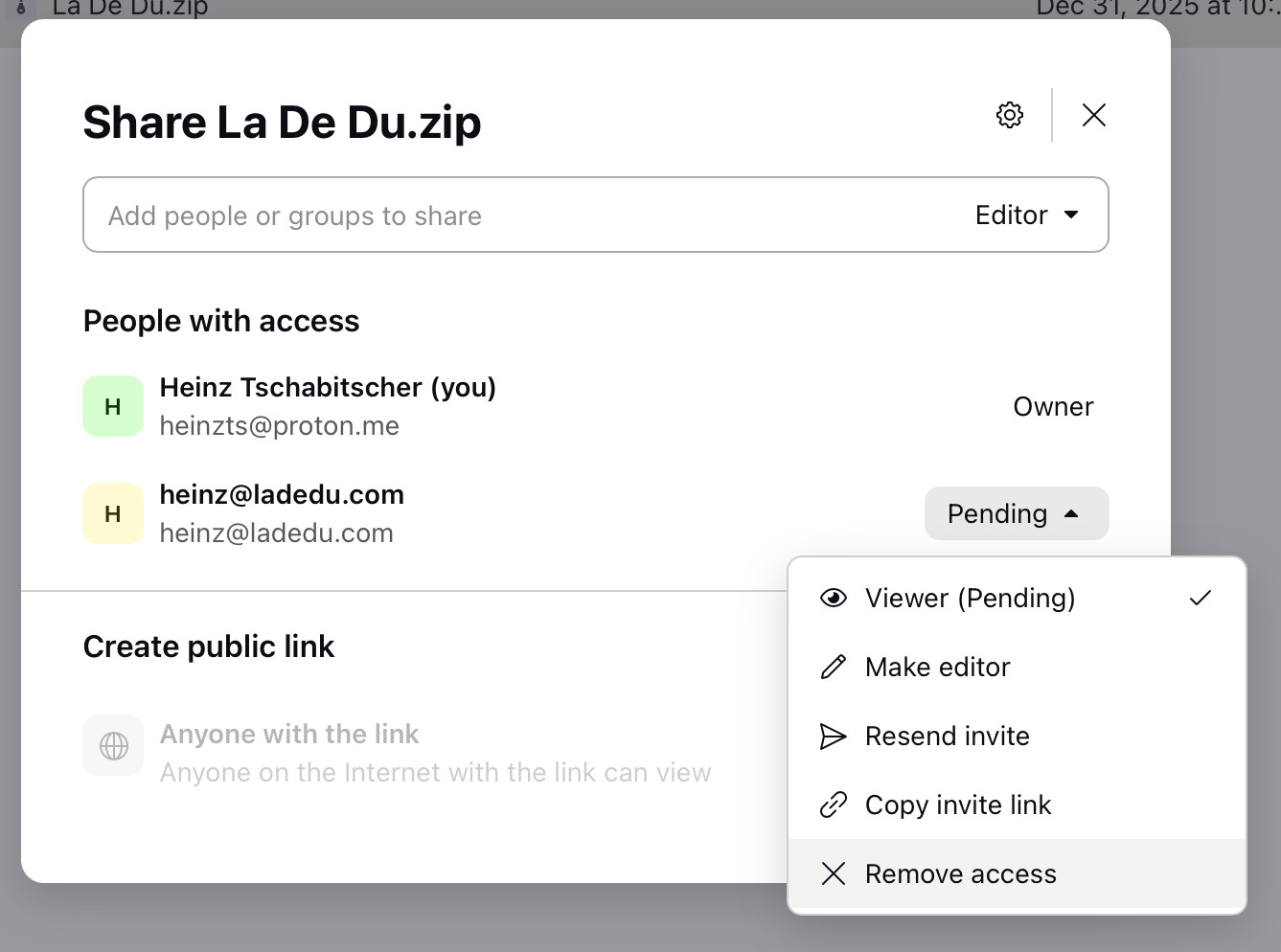
To remove access grants for a person:
- Open the sharing sheet for the file; see above.
- Select the drop-down menu for the person whose access you want to curb.
- Choose Remove access from the menu that has appeared.
(Tested with Proton Mail and Proton Drive in a desktop browser; first published January 2026, last updated July 2026)