

Want your PC to require a password after you haven’t used it for a while — say, 5 hours — yet still have Windows 11 wake from sleep without asking for a login if you return sooner? Find out here how to set an inactivity timeout for password log-in in Windows 11 ⤓.
On This Page
How to Set an Inactivity Timeout for Password Log-In on Windows 11
⚡ Quick Fix
Go to Settings | Accounts | Sign-in options and set If you’ve been away, when should Windows require you to sign in again? to Never. Then go to Settings | Personalization | Lock Screen, use Screen saver to set the desired timeout under Wait and enable On resume, display logon screen.
Time needed: 5 minutes
To specify a time of inactivity after which Windows 11 will require you to log in (whether the PC went to sleep in the meantime or not):
- Open Windows settings.
Here’s how: You can select the Settings app in the Start menu, for example.
Windows keyboard shortcut: Press Windows I to open Windows settings. - Go to the Accounts category.
- Select Sign-in options under Account settings.
- Choose Never for If you’ve been away, when should Windows require you to sign in again? (under Additional settings).
Caution: This method depends on the screen saver activating correctly. If the screen saver does not start, the PC will remain unlocked. Test the setup before relying on it for security.
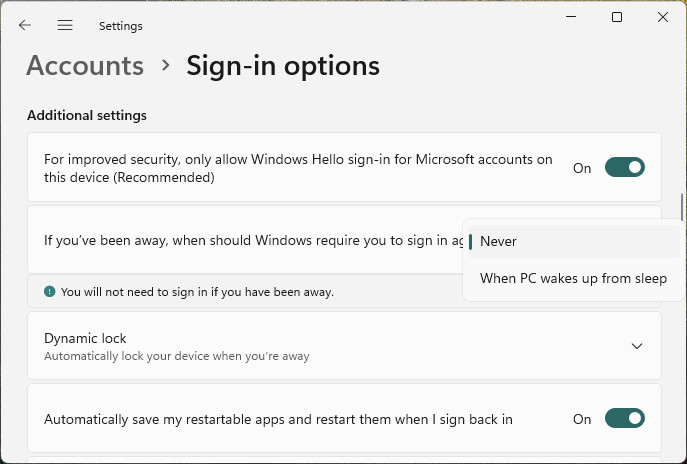
- Now go to the Personalization section in Settings.
- Open Lock screen
- Click Screen saver under Related settings.
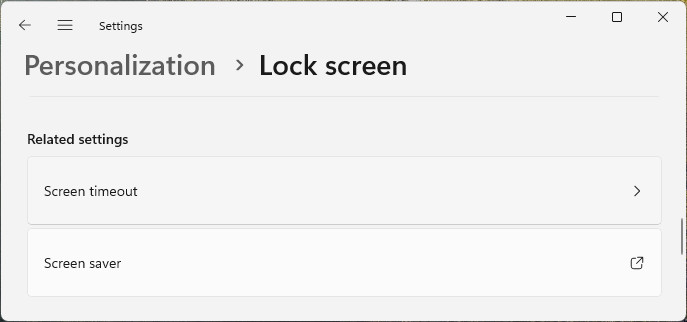
- Pick any screen saver.
Blank: If you draw a blank (like I did), Blank works just fine.
- Choose the inactivity timeout before password sign-in under Wait:.
Example: Enter
300for a timeout of 5 hours. - Turn on On resume, display logon screen.
- Now click OK.
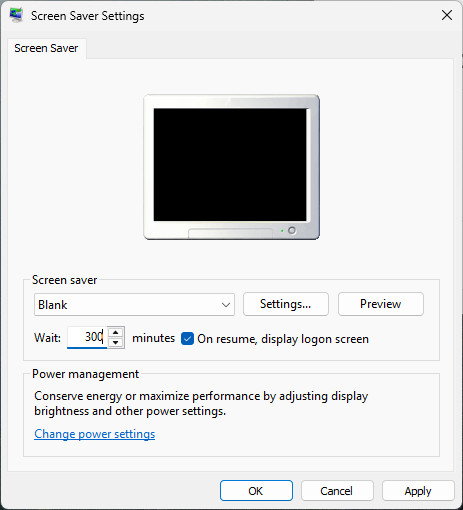
Secured from idle threats?
Tips help fuel these email and tech how-tos.
How to Set an Inactivity Timeout for Password Log-In on Windows 11: FAQ
Can I still lock the PC with “Dynamic lock?”
Yes.
If you have Allow Windows to automatically lock your device when you’re away enabled in Windows 11 sign-in options (see above), your PC will lock automatically when the paired Bluetooth device (like your phone) goes out of range and the system is idle — even if the screen saver’s inactivity timeout has not been reached yet.
You will have to log in with your password when you return.
Speaking of time: How to Set the Time and Date on Windows 10/11
(Tested with Windows 11 Version 24H2–25H2; first published May 2025, last updated November 2026)