

Staring at a sea of to-dos — and wishing you didn’t have to tackle them one at a time? What if you could quickly tag or manage several tasks at once, without opening each item’s “Info” panel? Find out here how to select multiple tasks in Apple Reminders ⤓ on Mac, iPhone and iPad.
On This Page
How to Select Multiple Tasks in Apple Reminders
Select Multiple Tasks in Reminders for Mac
Time needed: 1 minute
To highlight and act on more than one task at a time in Apple Reminders for Mac:
- Click to select the first task you want to include.
Here’s where: Click anywhere in the task’s area except the title (where the mouse cursor changes into a text insertion cursor), the encircled i⃝ (which opens the reminder’s details) and the completion circle (which marks the task complete).
Apple Reminders keyboard shortcut: With a list in focus, you can also press the down and up arrow keys (↓ ↑) to highlight the topmost and last tasks respectively.
Section headings: The keyboard shortcut will also highlight a section heading if it is first (or last); click the arrow key again to proceed to the following task. - Hold down Command while you click additional tasks to add them to the selection or remove them from it.
Selecting a range: Hold down Shift while you either use the up and down arrow keys or click the last task in a range to select a successive group of tasks.
Selecting all: See below for selecting all tasks in a list.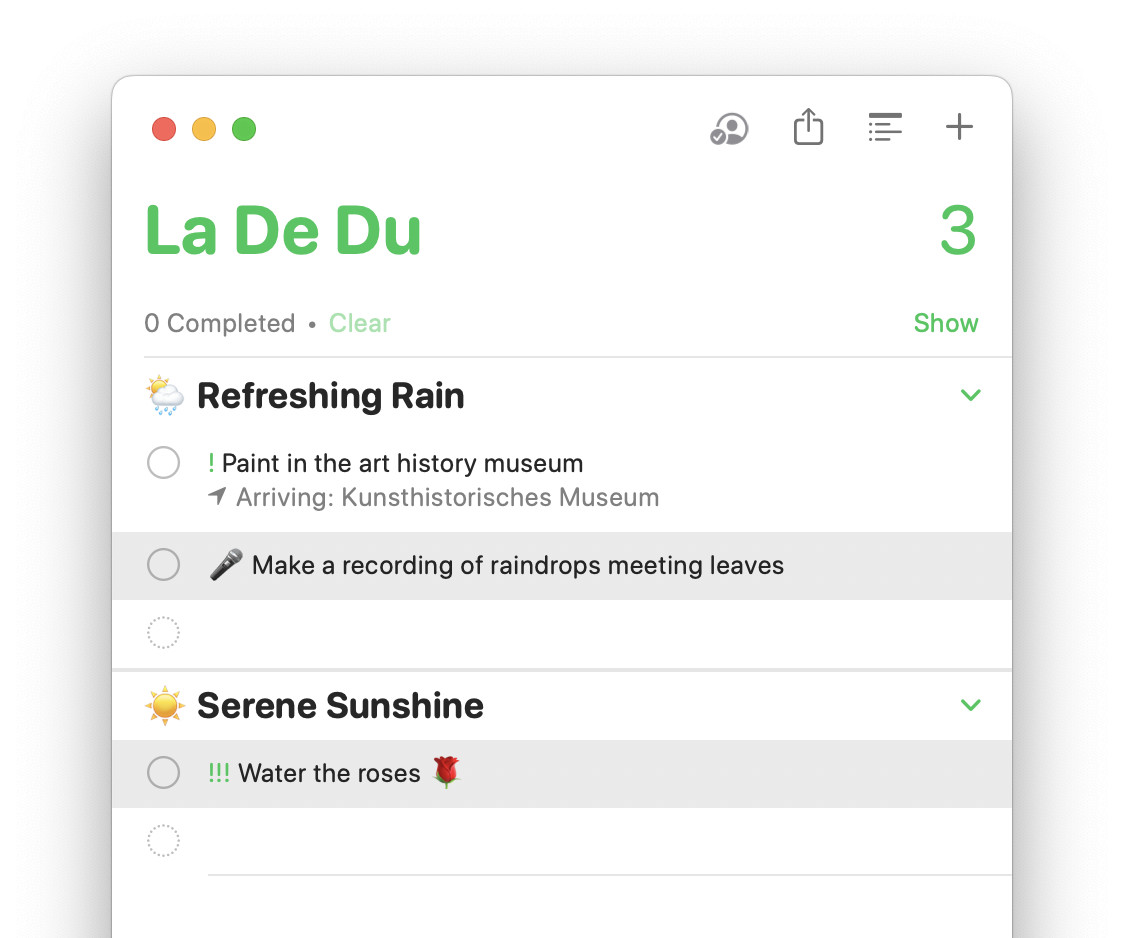
Now, you can act on the selected reminders in bulk, e.g., to move them to another list.
Successfully multi-tasking?
Tips help fuel these email and tech how-tos.
Select All Tasks in Reminders for Mac
To select all reminders on a list (or all reminders across all lists) in Reminders for Mac:
- Go to the list whose tasks you want to select.
All all: To select all tasks in Reminders (not just all on a list), go to the All list using View | Go to | All in the menu; to enable the “All” list if it is not available, select View | Show Smart List | All first. - Click any task to highlight it.
Section headers: Do select a task, not a section header; with one of the latter selected, Reminders will select all section headers, but not the tasks in them. - Press Command A.
Menu: Using the menu, choose Edit | Select All.
Select Multiple Tasks in Apple Reminders for iPhone and iPad
To choose a selection of tasks and act on them in unison using Apple Reminders for iPhone and iPad:
- Go to the list where you want to act on multiple tasks in the Reminders app.
- Tap the three dots menu button ⋯⃝.
Swiping shortcut: To quickly start selecting, you can also swipe over tasks from top to bottom (or vice versa) with two fingers and skip the menu. - Choose Select Reminders in the menu that has appeared.
- Tap a reminder to include it with the selection or remove it from selected tasks.
The circle: You need not use the circle in front of the task.
Selecting a range: Swipe over the selection circles in front of the task titles, though, to select a range quickly.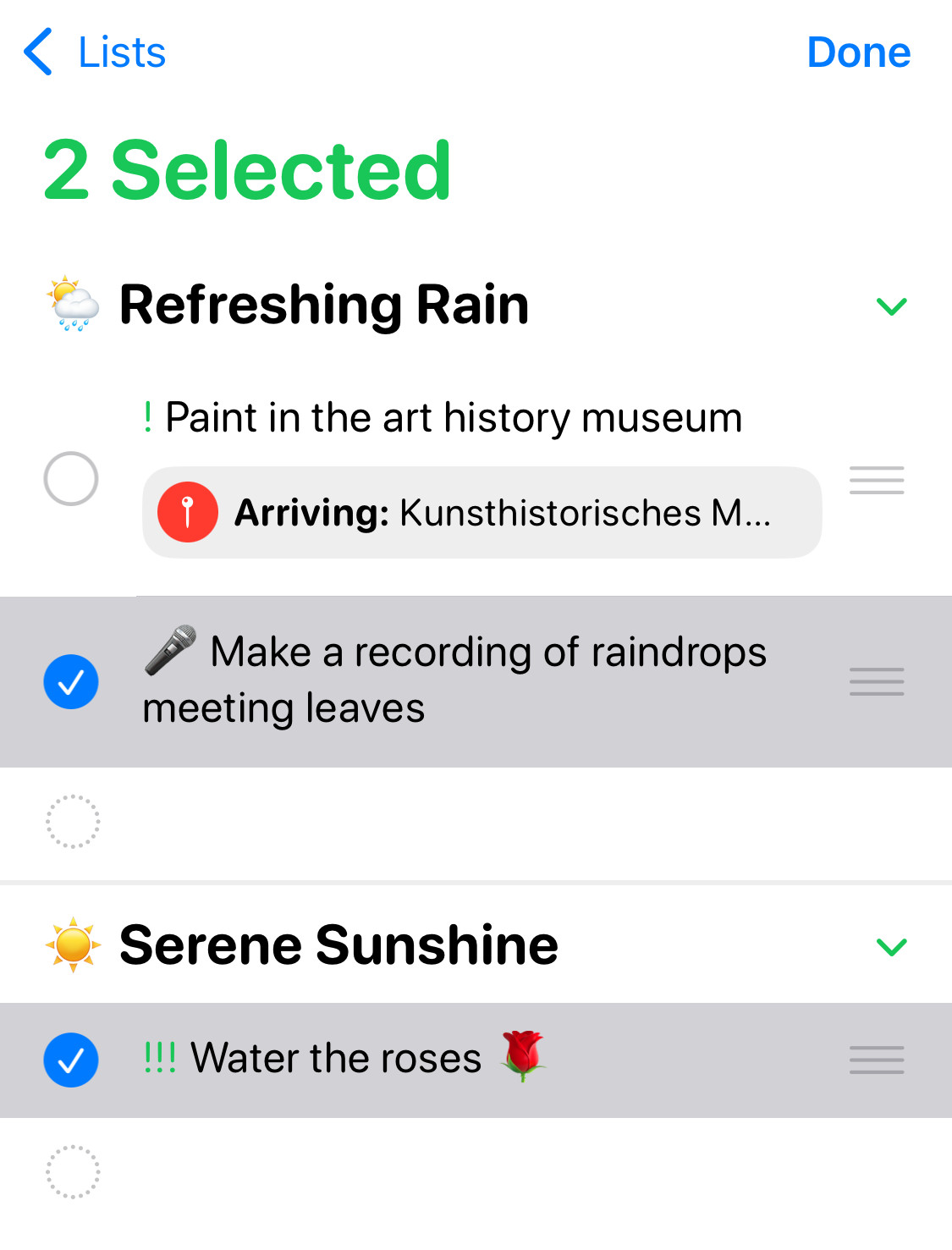
When you are done acting on the selection of tasks, tap Done.
How to Select Multiple Tasks in Apple Reminders: FAQ
Can I select all tasks quickly in Reminders for iPhone?
No.
You can use the swiping action to select all tasks on a list. That sill requires patience for larger lists, though.
Are there keyboard shortcuts for selecting tasks in Reminders for iPad?
No.
You can use the arrow keys to navigate tasks in Reminders for iPad but cannot select more than one at a time (or all) using the keyboard.
Can I select more than one tasks in Apple Reminders on iCloud.com?
No.
In Apple Reminders for the web on iCloud.com, you can act on one task at a time.
(Tested with Apple Reminders for Mac 7.0 as well as Reminders for iOS 18 and 26; first published February 2025, last updated April 2026)