

With nary an indicator light in sight, wondering how to know when you can stop charging an Apple Magic Keyboard connected to your Mac? Find out here how to see the battery charging level for a Magic Keyboard, Magic Trackpad or Magic Mouse.
First, To Gauge the Size of Eiffel Tower
To gauge the size and height of Eiffel’s Tower on the Champ de Mars in Paris at any given day, you can pull out the clinometer, of course, or the — thermometer.
For like any good metallic object, the svelte steel structure shrinks and expands with the ambient temperature. The difference in height extends to as much as six inches (15 centimeters), it seems, comparing a freezing winter to a hot and sweaty summer’s day in Paris.
Now, want to gauge the size of electrochemical potential remaining in an input device’s battery?
How to See a Magic Keyboard and Mouse Battery Charging Level
Using Bluetooth
To see the current battery charging level for Magic devices using Bluetooth in the macOS menu bar:
- Select the Bluetooth icon in the menu bar.
Control Center: If Bluetooth is not visible in the menu bar directly, open Control Center, the click Bluetooth. - Find the battery level listed for each device.
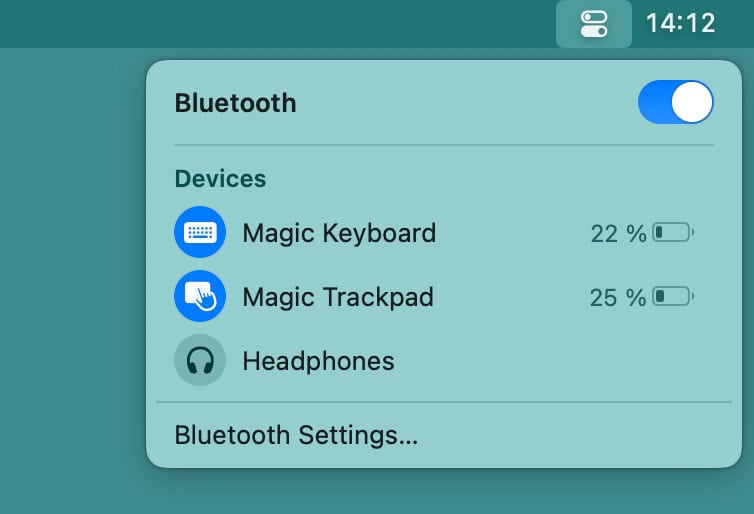
Mouse cheese levels established?
Tips help fuel these email and tech how-tos.
Using System Preferences
Time needed: 2 minutes
To see the current battery charging level (even when plugged in) for a Magic Keyboard, Magic Mouse, Magic Trackpad or other input device connected to a Mac:
- Open System Settings (or Preferences) on the Mac.
Here’s how: Select the Apple logo symbol ( ) in the menu bar and choose System Preferences… from the menu that has appeared.
- For the keyboard charging level, select Keyboard.
Magic Trackpad: Select Trackpad to learn the charging level for a trackpad.
Magic Mouse: For a mouse, finally, select Mouse, of course. - See the the current battery charging level at the top or bottom of the preferences window.
What it looks like: In macOS 12 Monterey and earlier, the display will say Keyboard battery level for a keyboard, Trackpad battery level for a trackpad and Mouse battery level for a mouse; in later version of macOS, you will only see the battery symbol.
Charging or not: You will see a battery with spark for currently charging devices and a mere battery for input devices using battery power; Apple also offers official charging advice.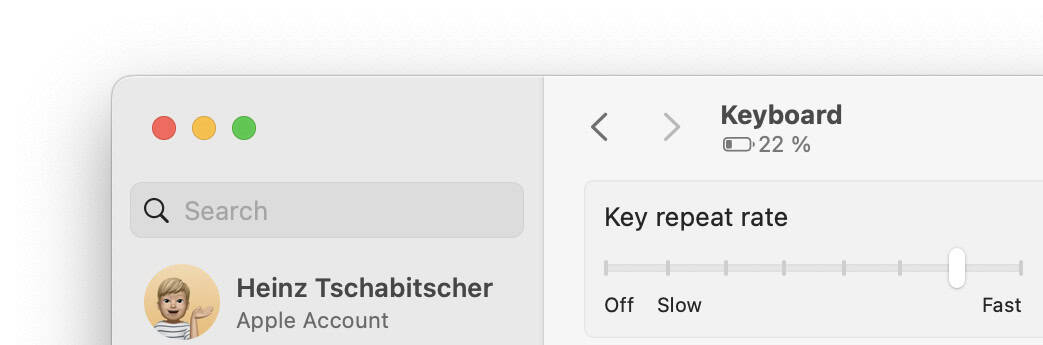
Using Widgets to See Magic Mouse or Keyboard Battery Level
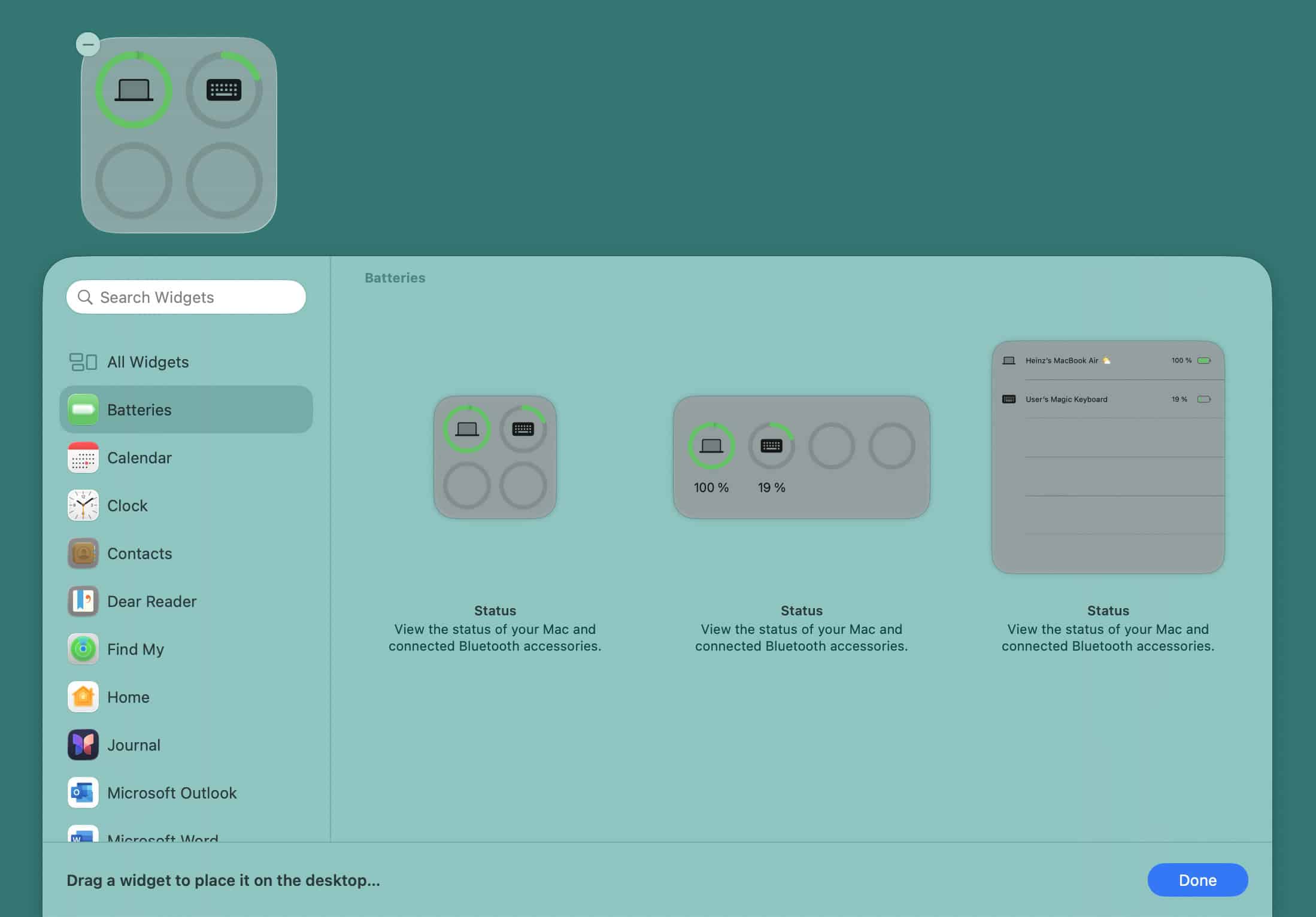
To have battery levels (including Magic Mouse and Magic Keyboard) at hand using macOS widgets:
- Enter widget editing mode:
In Notification Center: Open Notification Center and click Edit Widgets.
On the desktop: Click on your desktop with the right mouse button and select Edit Widgets…. - Go to the Batteries category.
- Drag and drop the desired Status widget in just the right spot.
- Click Done.
See Whether an Input Device is Currently Charging
To see whether a device is currently charging through the Mac (as well as the battery levels for devices not currently charging):
- Open System Preferences. (See above.)
- Select Bluetooth.
- See your currently connected input devices under Devices.
Charging: When a device is charging, you will see Connected – Charging for it.
On battery: For devices that are not currently charging, you will see the battery level instead.
(Tested with macOS Tahoe 26.9 and Sequoia 15.3 ; first published March 2025, last updated October 2025)