
Looking for a safe space to save passwords and other text on a Mac — beyond just the browser? Find out here how to save any password safely on a Mac ⤓ using Passwords and Keychain Access.
On This Page
How to Save Any Password Safely on a Mac
Using Passwords
Time needed: 3 minutes
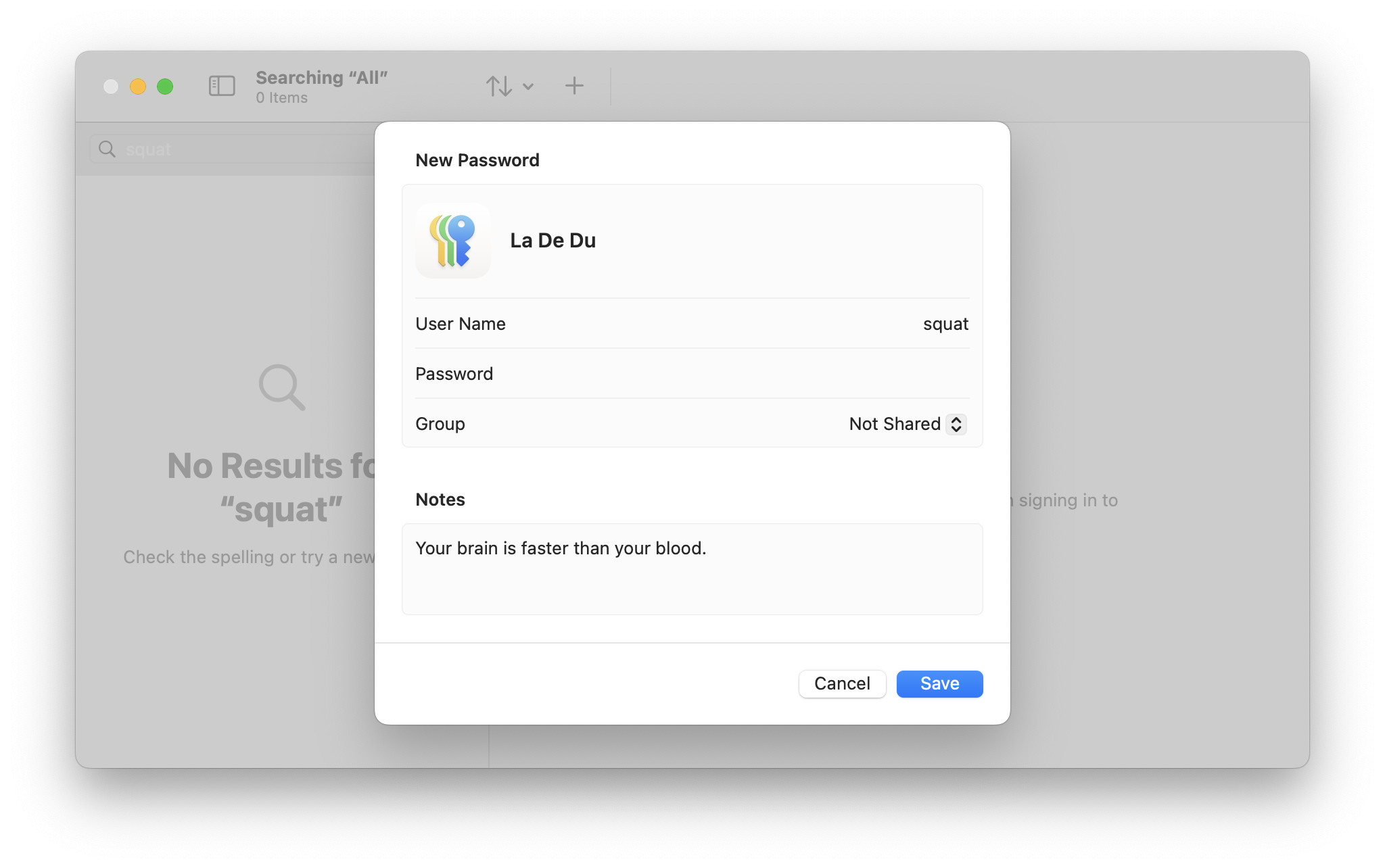
To store any password (or, indeed, any text) safely using the macOS Passwords app on a Mac:
- Open Passwords.
Here’s how: You can open Passwords from Launchpad, for example, or search for and open
passwordswith Spotlight. - Unlock your keychain with your account password or another means of authentication.
- Go to the All category.
Here’s how: You can go to All in the sidebar or select View | All from the menu.
Passwords keyboard shortcut: Press Command 1 to go to the All category quickly. - Click + (New Password).
Keyboard shortcut: You can also press Command N to start adding a new password.
- Type the name of the application, website, secret box, etc. for which you save the password as the item’s title.
What Safari uses: When you save a password in Safari, it uses the website’s domain together with the account name (in parentheses).
Required: Even if your password is not associated with an app or website, you need to enter a name or label for the password item. - If you do have a user name, enter it. under User Name.
It’s optional: You need not specify a user name.
- Type the secret passphrase under Password.
Required: The password is a required field.
Choose for me: Click the empty Password field to have Passwords generate a secure password for you. - Use the Notes field to add further details or associated notes.
Searchable: you can find passwords by their notes in Passwords.
- Click Save.
Their word: Apple include information on the Passwords app in a support article.
Password “Ishallneverfogetthispasswordagain1234” all safe and secure?
Tips help fuel these email and tech how-tos.
Using Keychain Access
To store passwords in encrypted form directly using Keychain Access on a Mac:
- Open Keychain Access on the Mac.
Here’s how: You can find Keychain Access in the Other folder, by default, on Launchpad or, of course, use Spotlight searching forkeychain access.
Website passwords alternative: For passwords you use on the web, you can also use System Preferences to save them to your secure keychain; see below.
Safari: If you want Safari to let you enter the password automatically, use either Safari or System Preferences to save the password; Safari will only access these passwords. - Select the iCloud or login keychain in Keychain Access.
Which one to use: The login keychain is stored on the Mac locally while iCloud is synchronized with iCloud and other devices (such as an iPhone, iPad or Windows PC) that are set up to synchronize passwords.
Separate keychain: You can also create a new keychain for your custom passwords and notes, of course; select File | New Keychain… from the menu. - Select File | New Password Item… from the menu.
Keychain keyboard shortcut: You can also press Command N to create a new entry. - Under Keychain Item Name, enter the application, website, secret box, etc. for which you save the password.
Example: You can use something likeladedu.com (neiloverall), or, for protected items in Apple Notes,Notes. - As Account Name:, type the user name or account.
Typical: Often, your email address will double as the account name.
Example: For Apple Notes, use the account type, likeiCloud. - User Password:, type the password you want to save.
Generate secure passwords: You can also have Keychain Access generate a password for you; click the key icon next to the Password: field. - Now click Add.
Password kind: Keychain Access will use application password as the kind; though of no consequence, you can change that type when you edit a password entry.
Save Website Passwords using System Preferences (macOS Sonoma 14 and Earlier)
To save passwords for websites for easy access in System Preferences:
- Select Apple logo | System Preferences… from the menu.
- Go to the Passwords category.
- Type your Mac or iCloud password.
- Press Enter.
- Click +.
- Type the domain name under Website:.
Domains: System Preferences will only save passwords for domains (e.g.,ladedu.com). - Enter the user name under User Name:.
- Finally, type the password to save under Password:.
- Click Add Password.
Saving and un-saving AutoFill information:
How to Remove AutoFill Suggestions in Safari for Mac
How to Save Any Password to Keychain on a Mac: FAQ
Will passwords synchronize?
Yes.
The passwords you save in Passwords and the passwords in an iCloud keychain in Keychain Access will synchronize with other devices logged into the same iCloud account.
Can I change the password saved in Passwords?
Yes.
To change an entry in Passwords:
- Open and unlock Passwords.
- Find and highlight the item you want to edit.
- Click Edit.
- Make any necessary changes.
- Now click Save.
Keychain Access
To change the password (or any other detail) for a password item in Keychain Access:
- Double-click the item in Keychain Access.
- Check Show password:.
- Type the keychain password and click OK.
iCloud: For the iCloud Keychain, use your iCloud account password.
Login: With the login keychain, type your macOS account password. - Edit the password (or, of course, any other field).
- Click Save Changes.
(Tested with macOS Tahoe 26 and Sequoia 15; first published November 2024, last updated July 2026)