

Looking, seemingly in vain, for the ‘§’ symbol on your keyboard so you can cite sections and statutes in style? Find out here how to insert the section sign (§) on Linux ⤓ using the keyboard alone or a character picker (Gnome and KDE).
On This Page
How to Insert the Section Sign ( § ) on Linux
Using the US-English (Macintosh) Keyboard Layout
Time needed: 1 minute
To enter the section symbol on Linux using Gnome or KDE:
- Add the US-English (Macintosh) keyboard layout and switch to it for current input.
Here’s how: You can change keyboard layouts on Linux using both menu items and keyboard shortcuts.
Here’s why: The Mac keyboard layout makes it particularly easy to reach for and type the section sign using the keyboard alone. - Position the text cursor where you want to insert the section symbol.
Here’s where: The section symbol usually stands on its own, separated from the words preceding it and the section number following it by whitespace; it is advisable to use protected, non-breaking spaces to avoid the section sign appearing disjointed at the beginning or end of a line.
- Press AltGr 6 to insert
§.No “AltGr”: Without a key labelled “AltGr”, try the right Option key.

All $afely $ectioned?
Tips help fuel these email and tech how-tos.
Using the “Compose” Key to Insert ‘§’
To use the Linux Compose key to input the section sign with the keyboard alone:
- Enable Compose key support for Linux and define a key to use for it.
- Press Compose.
- Now type
so(S and O).
Here’s what happens:sowill be replaced with§.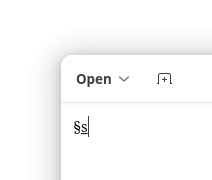
Also a kind of section: How to Insert the Paragraph Symbol ( ¶ ) on Linux
Using a Character Picker
To copy the section sign for pasting anywhere using the Gnome and KDE character pickers:
- Bring up Gnome Characters or KDE KCharSelect.
- Search for
section sign. - Highlight and copy the section sign ‘§’ in search results.
- Paste the symbol as desired.
How to Insert the Section Sign ( § ) on Linux: FAQ
Can I insert the section sign using Unicode?
Yes.
To input the section sign using its Unicode code point directly on Linux:
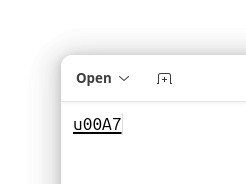
- Press Ctrl Shift U.
What you get: You should see u (an underlined letter ‘u’). - Type
00A7.
The case: You can use both an upper- and a lowercase letter ‘A’. - Press Enter.
Can I also copy the section symbol right here?
Yes, certainly.
Copy the symbol below to paste anywhere on Linux:
Section symbol § |
(Tested with Gnome 47–49 and KDE Plasma 6.1–6.2; first published November 2024, last updated June 2026)