

Looking to refer to a paragraph in style and writing, hunting for the pilcrow symbol on an iPhone? Find out here how to insert the paragraph symbol ( ¶ ) with the iPhone keyboard ⤓ using text replacement.
On This Page
How to Insert the Paragraph Symbol ( ¶ ) with the iPhone Keyboard
⚡ Quick Fix
and either paste directly or set up a text replacement shortcut such as //p in Settings | General | Keyboard | Text Replacement.
Time needed: 2 minutes
To input a paragraph sign ( ¶ ) in text using the keyboard on an iPhone:
- Set up text replacement for the paragraph symbol; see below.
- Position the cursor where you want to use ‘¶’ in text.
Here’s where: The paragraph symbol or pilcrow is used in editing, legal writing and in general to refer to specific paragraphs; use it like you would use the word “paragraph”.
- Type the character combination you have set up to expand to the paragraph sign.
Example: Type
//p, for instance, without whitespace.
Case: Upper and lower case work equally well. - Select the paragraph symbol ¶ in the auto-completion bar.
Whitespace: As an alternative, you can also use Space to enter the symbol followed by whitespace or Enter to type the paragraph symbol followed by a newline character; usually, do not leave that normal whitespace character in place (see the next point).
What next: When you refer to a paragraph, it is best to place a non-breaking space after ‘¶’ so the entire reference stays on one line.
Alternative symbols: See below for alternatives, the reversed and the curvy pilcrow.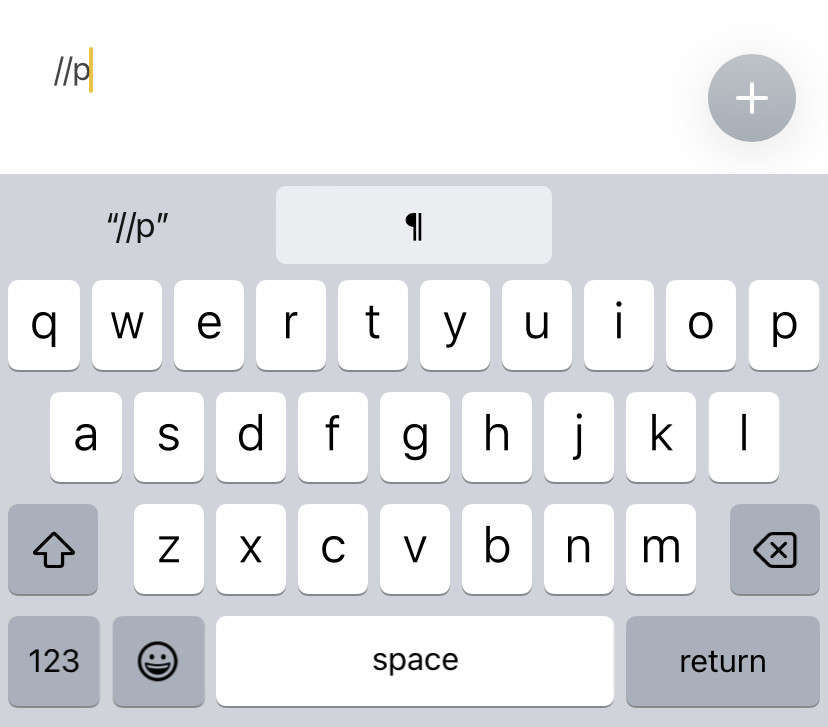
Pilcrow thrown in?
Tips help fuel these email and tech how-tos.
Set Up a Paragraph Symbol Shortcut on an iPhone
To add a character combination that will be replaced with the paragraph sign on the iPhone keyboard:
- Open the Settings app.
- Select General.
- Now choose Keyboard.
- Go to Text Replacement.
- Tap + at the top.
- Copy the desired paragraph symbol below and paste it under Phrase.
- Enter the character sequence you want to use to enter the paragraph symbol under Shortcut.
Example: Use //p, for example, for the paragraph symbol. - Tap Save.
Their word: Apple includes information on setting up text replacements in the iPhone User Manual.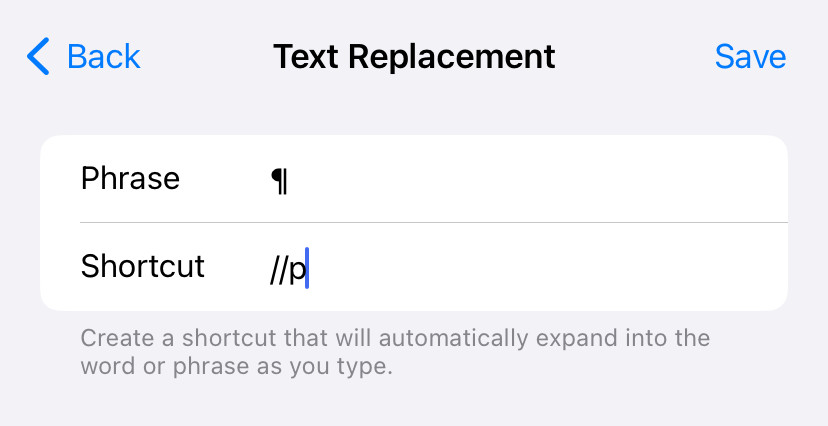
Sections, not paragraphs: How to Enter the Section Symbol (§) with the iPhone Keyboard
How to Insert the Paragraph Symbol ( ¶ ) with the iPhone Keyboard: FAQ
Can I also insert the inverted pilcrow?
Yes.
Just like for the normal paragraph sign, you can set up text replacement for the inverted and the curved pilcrow. Copy them below:
Paragraph sign: ¶ | |
Inverted paragraph sign: ⁋ | |
Curved paragraph symbol: ❡ |
Is the paragraph sign available on the iPhone keyboard?
No.
The standard iPhone keyboard includes the section sign, but not the paragraph symbol.
Can I set up the text replacement on a Mac?
Yes.
Text replacements synchronize within an Apple iCloud account, so if you set up the shortcut for the pilcrow on a Mac, it will also work on an iPhone or iPad.
(Tested with iOS 17–18 and 26; first published March 2024, last updated June 2026)