

Who doesn’t want to express emotions richly and hint at things smartly? With emoji characters, you can. Find out here how to add and insert emojis on Android ⤓ using the standard keyboard.
On This Page
How to Add Emojis on Android
Time needed: 1 minute
To add an emoji character to text on an Android device using the Gboard keyboard.
- Put the text cursor where you want the emoji character to appear.
- Tap the emoji key on the keyboard.
No emoji button: Tap and hold the , (comma) next to the Space key and then tap the emoji button in the pop-up.
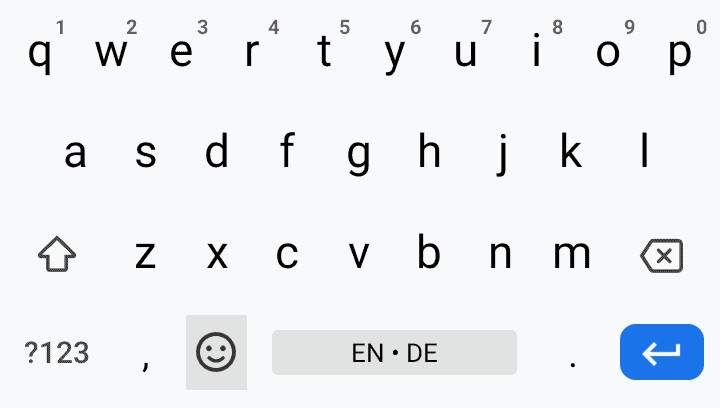
- Go to the emoji tab.
- Tap any emoji to insert it.
Categories and recently used: Tap categories to jump to their emoji; the most recently used emojis are at the very top.
Searching for emojis: Using Gboard, you cannot search for emoji characters; you can have the keyboard suggest emojis as replacements for what you type, however — see below.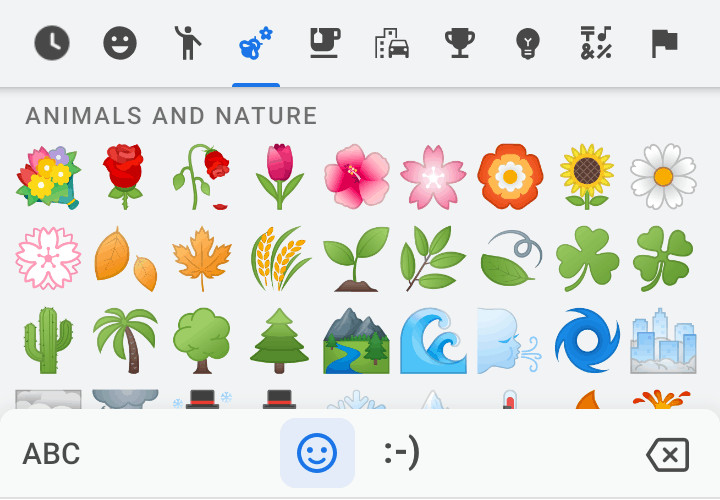
Feeling emojional?
Tips help fuel these email and tech how-tos.
Insert Emojis on Android Using Auto-Complete
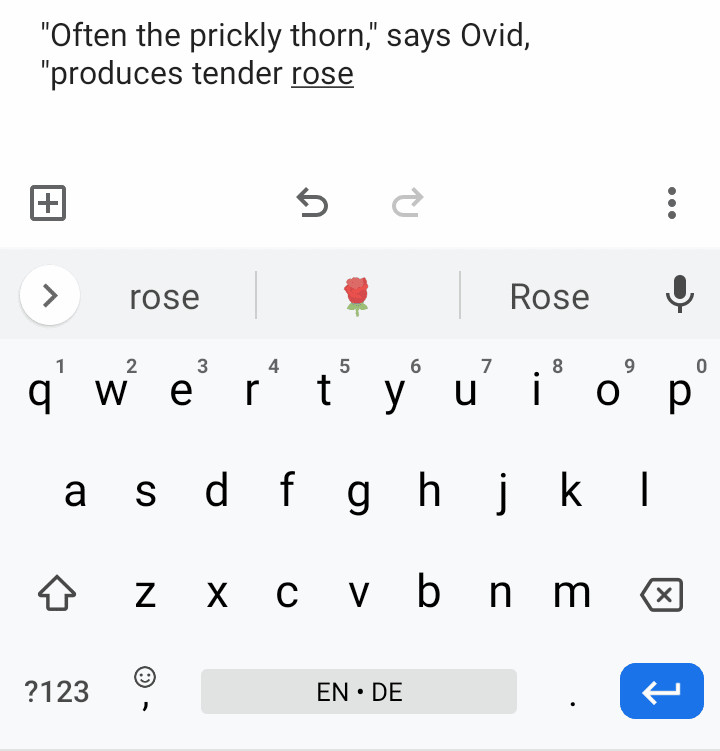
You can also use text completion suggestions to replace some words with corresponding emojis — and, in a way, search for the appropriate emoji character.
To insert emojis using auto-completion:
- Type the word you want replaced with an emoji.
- As soon as the sought emoji appears in the keyboard’s auto-complete strip, tap it.
Still looking for just the right emoji? The best sites to search for emojis
Add a Dedicated Emoji Key to the Gboard Keyboard on Android
To add an emoji key next to Space on Android Gboard:
- Open the Settings app.
- Go to the System category.
- Select Langauges & input.
- Now tap Virtual keyboard under Keyboard & inputs.
- Select Gboard.
- Choose Preferences.
- Enable Show emoji switch key.
Emojis or languages: You can enable the switch key either for emojis or languages, not both.
(First published June 2021, last updated April 2023)