

Took notes in a plain text file with a touch of Markdown formatting for flair, and now want to continue in Google Docs — without losing the flair and formatting? Wish you could just copy and paste Markdown outright? Find out here how to smoothly import from Markdown into Google Docs ⤓ (and even paste Markdown styling directly).
On This Page
How to Import from Markdown into Google Docs
Importing Markdown (.MD) Files in Google Docs
Time needed: 2 minutes
To import a Markdown (.MD) file as a new document in Google Docs:
- Select File | Open in Google Docs.
Docs keyboard shortcut: You can also press Command O (Mac) or Ctrl O (Windows, Linux, ChromeOS) to open the opening dialog.
- Go to the Upload tab.
Elsewhere: You can also import a Markdown file located on any of the other tabs, of course.
- Click Browse.
- Find and upload the .MD file you want to import into Google Docs.
Here’s what happens: Google Docs imports and transforms the Markdown document into a Google Docs file.
Their word: Google include information on using Markdown in Docs help.
Pasting Markdown into a Google Docs Document
To paste text with Markdown markup into a Google Docs file automatically applying the formatting:
- Open the Markdown file in a plain text editor and copy its contents to the system clipboard.
Vim: Even Vim and Neovim let you copy to the clipboard. - Open the document into which you want to import the content in Google Docs.
Like new: You can start with an empty, new document, of course. - Make sure Markdown formatting is enabled in Google Docs; see below.
- Position the text cursor where you want the imported Markdown text to appear in the document.
- Select Edit | Paste from Markdown from the menu.
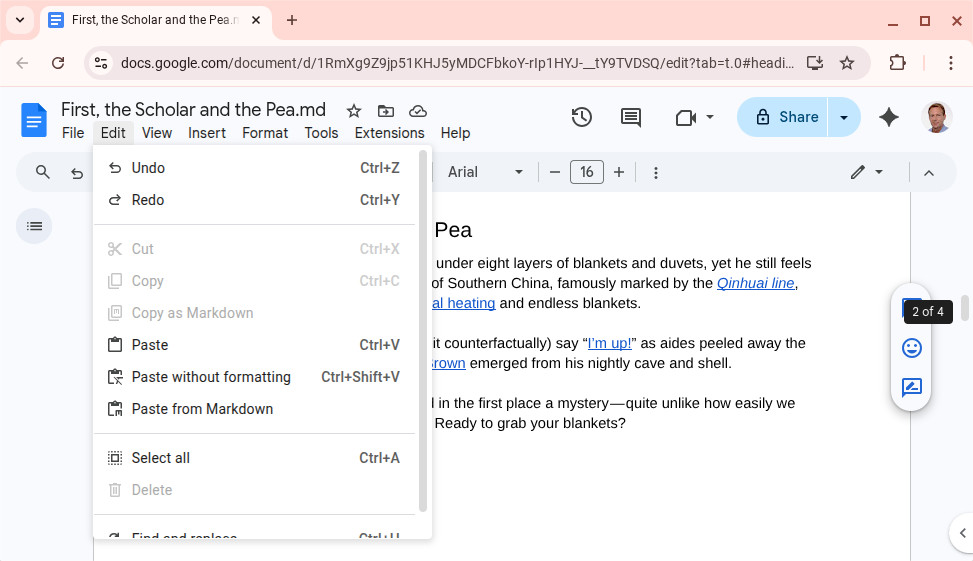
Enable Markdown Formatting in Google Docs
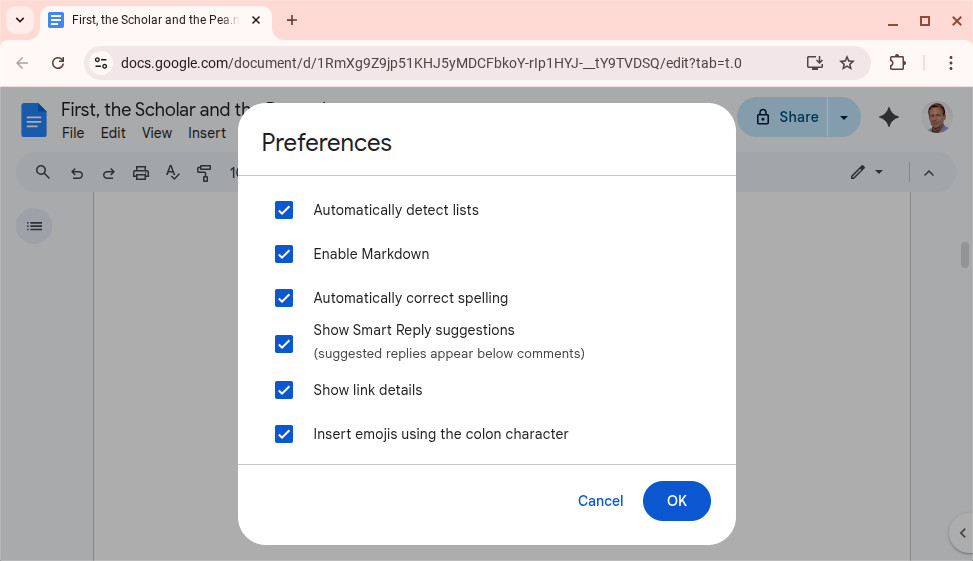
To have Google Docs interpret Markdown formatting in typed and pasted text:
- Select Tools | Preferences in a Google Docs document.
- Go to the General tab.
- Turn on Enable Markdown.
- Click OK.
How to Import from Markdown into Google Docs: FAQ
What happens if the file I import includes Markdown features Google Docs does not support?
If the Markdown file includes local image or other formatting not supported by Google Docs’s parser, import may fail.
To use a Markdown file in Google Docs after importing has failed:
- Try pasting the Markdown text into the document; see above.
If pasting fails, you can resort to simplifying the Markdown:
- Make a local copy of the Markdown document.
- Edit it to remove formatting and features beyond the simple set supported by Google Docs.
- Save and import the simplified Markdown document.
Will Google Docs import embedded images from Markdown?
No.
Google Docs will not import images referenced with local paths or URLs. To include the images, insert them into the document using Google Docs after importing the Markdown file.
(Tested in Google Docs; first published April 2026)