

Followed a link, and something feels slightly off? You’re not alone wondering if you’ve invited mayhem upon your browser and device when you just wanted to read or download something. Find out here how to get phishing protection in Firefox ⤓ and have the browser warn you about deceptive sites and dangerous downloads.
On This Page
How to Get Phishing Protection in Firefox
Time needed: 3 minutes
To browse with added confidence in Mozilla Firefox, protected by automatic checks for phishing and malware for each page you visit:
- Click the hamburger menu button in Firefox.
- Select Settings, Options or Preferences from the menu that has appeared.
Firefox keyboard shortcut: On macOS, you can also press Command , to open Firefox settings.
- Open the Privacy and security (or Privacy & Security) category.
Firefox URI shortcut: You can also open
about:preferences#privacyusing the address bar. - Select Advanced settings under Connection and software security.
- Enable Block dangerous and deceptive content under Security.
Recommended: Typically, do check Block dangerous downloads and Warn you about unwanted and uncommon software as well.
Not recommended: To disable all safe browsing checks in Firefox, uncheck block dangerous and deceptive content.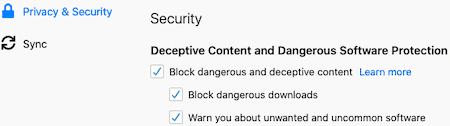
- Close the Options or Preferences browser tab.
All safe and soundly sourced?
Tips help fuel these email and tech how-tos.
How to Get Phishing Protection and Dangerous Download Alerts in Firefox: FAQ
How does Firefox check for dangerous content?
Mozilla Firefox uses Google Safe Browsing to identify potentially unsafe pages and downloads.
To do so, Mozilla Firefox downloads a list of dangerous sites from Google Safe Browsing periodically. Then, it checks every page you visit against that list.
If a page is on the list, Mozilla Firefox sends a part of the URL that identifies it uniquely to Google Safe Browsing servers to verify the page is currently on the main list.
For suspicious downloaded files, Mozilla Firefox will send some information about the file to Google Safe Browsing to verify its safety with the service.
How can I test Firefox phishing protection is working correctly?
To test Firefox’s safe browsing checks are in effect, you can visit the
You will see a warning if the phishing test in Firefox succeeded.
Can I still visit a site identified as unsafe by Firefox?
Yes.
To override the safe browsing warning and open a suspicious page in Mozilla Firefox:
- Click See details on the Deceptive page ahead warning page.
- Now click ignore the risk and open the unsafe page.
Important: Only do this if you have good reason to believe the page you are about to visit will not be immediately dangerous. Do act with caution on the page.
(Tested with Mozilla Firefox 111–154; first published July 2018, last updated August 2026)