

Stuck copying one thing at a time in Windows, forever switching back and forth wasting time? Wish you could stash multiple snippets and choose which one to paste? With a little tweak in Windows and the right keyboard shortcut, you can do just that — like magic. Find out here how to copy and paste multiple items in Windows ⤓.
On This Page
How to Copy and Paste Multiple Items in Windows 11 with Clipboard History
⚡ Quick Fix
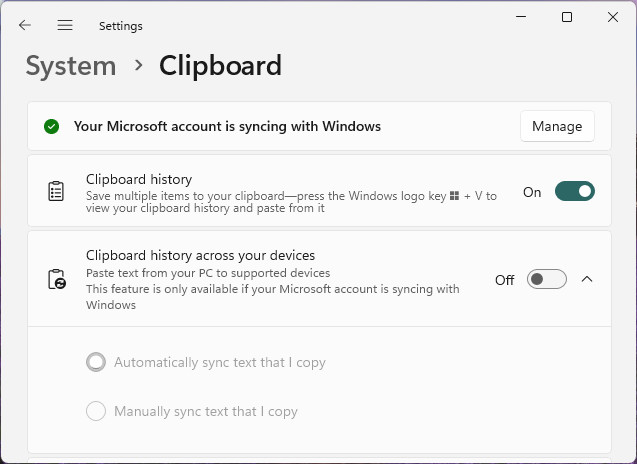
Press Windows I to open settings and go to System | Clipboard to turn on Clipboard history.
Now copy items normally using Ctrl C and press Windows V (instead of Ctrl V) to select from the clipboard history to paste.
Time needed: 2 minutes
To copy and then paste multiple items using Windows clipboard history:
- Enable Windows clipboard history; see below.
- Highlight and copy up to 25 items to the clipboard as normally you would.
Here’s how: Press Ctrl C to copy to the clipboard anywhere in Windows.
- Position the text cursor where you want to paste any one of the previously copied items.
- Press Windows V.
- Click any item in the clipboard history to paste it.
Using the keyboard: Use the up and down or right and left arrow keys to highlight the desired item, then press Enter to insert it.
Preservation: Pin items to set them up as permanent text snippets you can use anywhere in Windows.
Their word: Microsoft include information on the clipboard and its history in Windows help.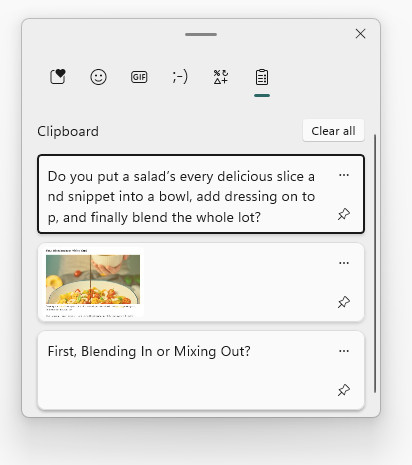
Clipboard history at your fingers’ tips?
Tips help fuel these email and tech how-tos.
Enable Clipboard History in Windows
To set up Windows to keep more than one item in the clipboard for you to access and paste later:
- Open Windows Settings.
Here’s how: Press Windows I or select Settings from the Start menu to open Settings. - Go to the System category.
- Select Clipboard.
- Enable Clipboard history.
How to Copy and Paste Multiple Items in Windows 11 with Clipboard History: FAQ
How many items will Windows keep in clipboard history?
Windows 11 will keep up to 25 items (excluding pinned items) in the history for pasting.
Which entry will be removed when I copy a 26ᵗʰ item?
The Windows clipboard will delete the oldest entry from the history — even if it has been pasted recently.
Do pinned items count toward the limit of 25?
No.
Pinned items are kept in the clipboard history independently from the rolling history of 25 items.
Will clipboard history be preserved?
No.
The 25 items of rolling clipboard history are as ephemeral as RAM. They will not be preserved if you reboot your computer, for example.
Yes.
Any items you clip as permanent text snippet will be kept until you remove them from clipboard history.
Can I remove an item from clipboard history?
Yes.
To delete an individual entry from your clipboard history:
- Press Windows V to open clipboard history.
- Click or tap the three dots menu icon for the item you want to remove.
- Now click Delete.
Empty the Windows Clipboard History
To remove all items except those pinned to the clipboard:
- Open clipboard history.
- Click Clear all.
(Tested with Windows 11 Version 24H2–25H2; first published February 2025, last updated August 2026)