

Looking in frustration — and in vain — for the plus over minus sign on your iPhone’s keyboard to give a range of tolerance or some wiggle room? Find out here how to add the plus/minus symbol ( ± ) on iPhone and iPad without breaking a sweat or the keyboard.
First, Cheese Concealing Crystals
You chewed on something crispy in a piece of cheese, chunks of crunchy crystals concealed within its curd?
Be elated rather than concerned: chances are you have bitten on tyrosine derivatives, which develop from cheese proteins only after a good while. That means your cheese has aged for at least ± eight months. A sign of quality!
While those quality cheese crystals are popping, let’s find out how to write ±:
How to Add the Plus/Minus Symbol ( ± ) on iPhone and iPad
Using the Keyboard and Text Replacement
Time needed: 2 minutes
To insert the plus or minus symbol ( ± ) on an iPhone or iPad:
- Set up a text replacement for the symbol; see below.
- Position the text cursor where you want to insert the ‘±’ symbol.
- Type the character sequence you have set up for inserting the plus or minus sign.
- Tap ± in the suggestion bar or press Space or a punctuation character to insert the plus/minus symbol.
Here’s what happens: The character sequence set up for the text replacement is replaced with the symbol itself.
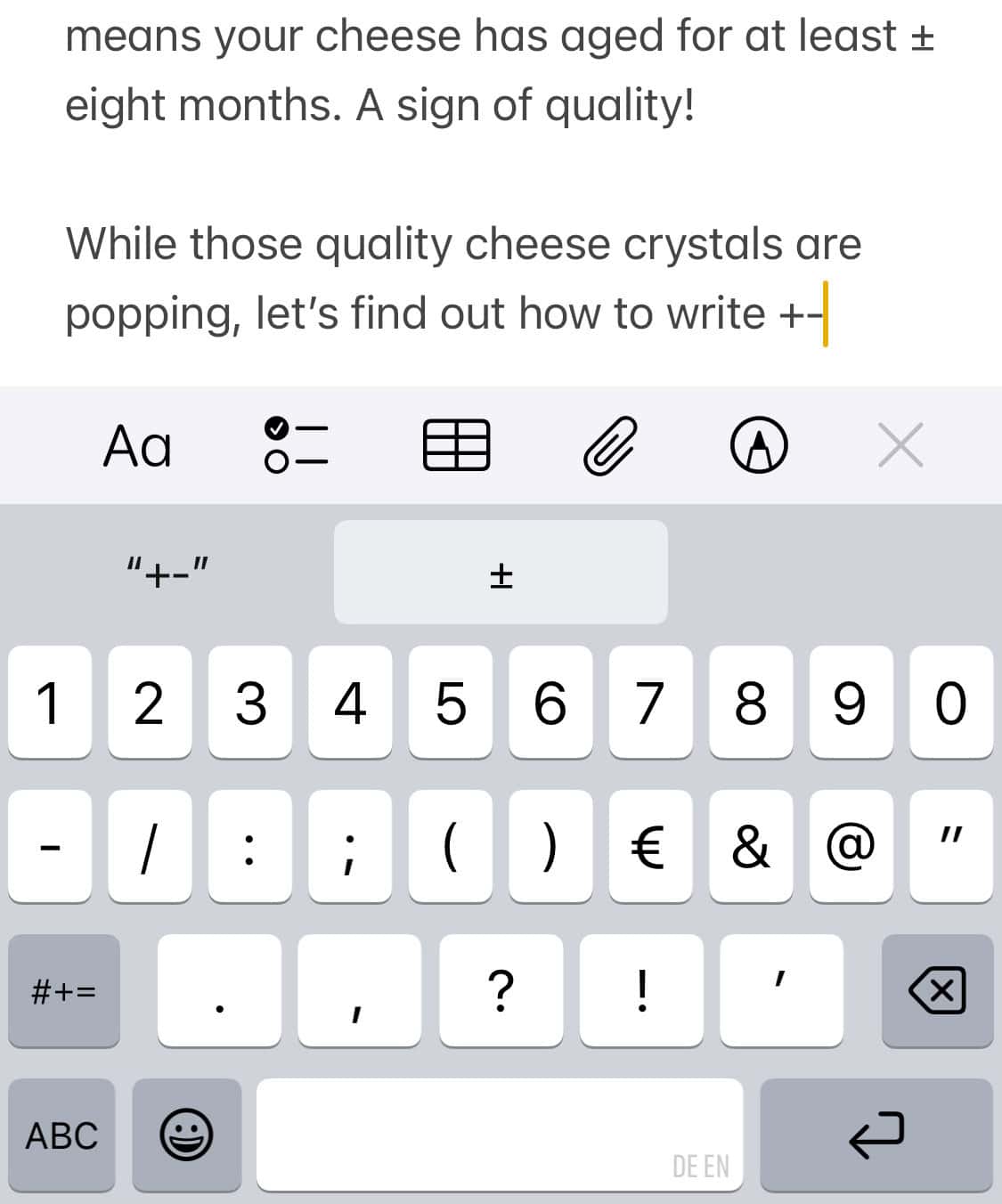
Everything ± right now?
Tips help fuel these email and tech how-tos.
Set Up a Text Replacement for the Plus/Minus Symbol
To create a text replacement for inserting the plus or minus symbol on an iPhone:
- Copy the plus or minus symbol using the table below.
- Open the Settings app.
- Go to General.
- Select Keyboard.
- Now open Text Replacement.
- Tap +.
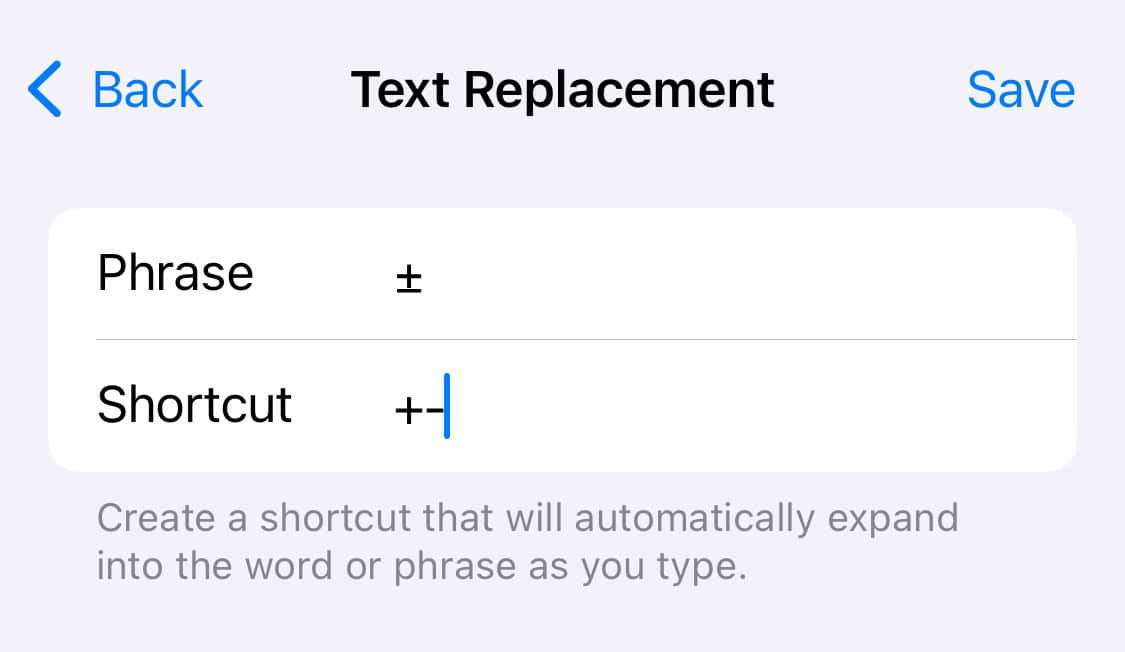
- Now tap in the field for Phrase.
- Select Paste from the context menu.
- Type the character sequence you want to use for the plus over minus symbol (or, of course, the minus over plus symbol) under Shortcut.
Example: You can use something as simple and obvious as+-in this case. - Tap Save.
Copy and Paste the Plus/Minus Sign
To copy the plus or minus sign for pasting anywhere on an iPhone or iPad, use the copy buttons below.
plus or minus sign ± | |
minus or plus sign ∓ |
How to Add the Plus/Minus Symbol ( ± ) on iPhone: FAQ
Can I set up the text replacement on a Mac?
Yes.
You can set up a text replacement for the plus or minus sign on a Mac logged into the same Apple account if you have iCloud Drive syncing enabled.
(Tested with iOS 18; first published February 2025, last updated July 2025)